tp
Moolah Manager - Developer Guide

- 1. Preface
- 2. Acknowledgements
- 3. Setting Up the Project
- 4. Design
- 5. Implementation for Managing Transactions
- 6. Implementation for Budgeting and Financial Insights
- 7. Implementation for Miscellaneous Operations
- Appendix A: Product scope
- Appendix B: User Stories
- Appendix C: Non-Functional Requirements
- Appendix D: Glossary
- Appendix E: Instructions for Manual Testing
1. Preface
Moolah Manager is a desktop application for managing one’s finances, optimised for use via a Command Line Interface (CLI). Designed for IT professionals who are fast typists, it can help to process day-to-day monetary transactions that are classified into income and expense. Users can expect to get an overview of their transactions at a glance and be provided with valuable insights into their spending habits. They are also encouraged to set budget goals to minimise their spending.
This developer guide for Moolah Manager V2.1 illustrates the high-level architecture and how the features are implemented within the application. Moreover, it specifies the scope and requirements of the product that were established prior to the development of features. We hope that this guide will assist developers in understanding how the application works and be able to maintain it seamlessly.
You may click here to visit the GitHub repository of this project.
Written by: Brian Wong Yun Long
2. Acknowledgements
The format of this developer guide was adapted from SE-EDU AddressBook Level 3 Developer Guide. The class diagrams are styled using the Cyborg Outline theme by Brett Schwarz.
Some parts of the source code in this application were reused and adapted from the team’s individual projects during the CS2113 IP phase.
Written by: Brian Wong Yun Long
3. Setting Up the Project
Before setting up the project on your computer, kindly check that you have installed:
- Java JDK 11
- Intellij IDEA - highly recommended
Firstly, you should fork this repo, before cloning the fork to your computer.
Next,
- Ensure that Intellij JDK 11 is defined as an SDK, as described in this [Set up JDK guide] – this step is not needed if you have used JDK 11 in a previous Intellij project.
- You might need to set the Project language level section to the SDK default option.
- Import the project as a Gradle project, as described in [se-edu’s Import Gradle Project guide].
- Running the project: After finishing the import, locate the
src/main/java/seedu.duke/Duke.javafile in this project, right-click it, and chooseRun Duke.main().
Written by: Paul Low
4. Design
4.1. Architecture
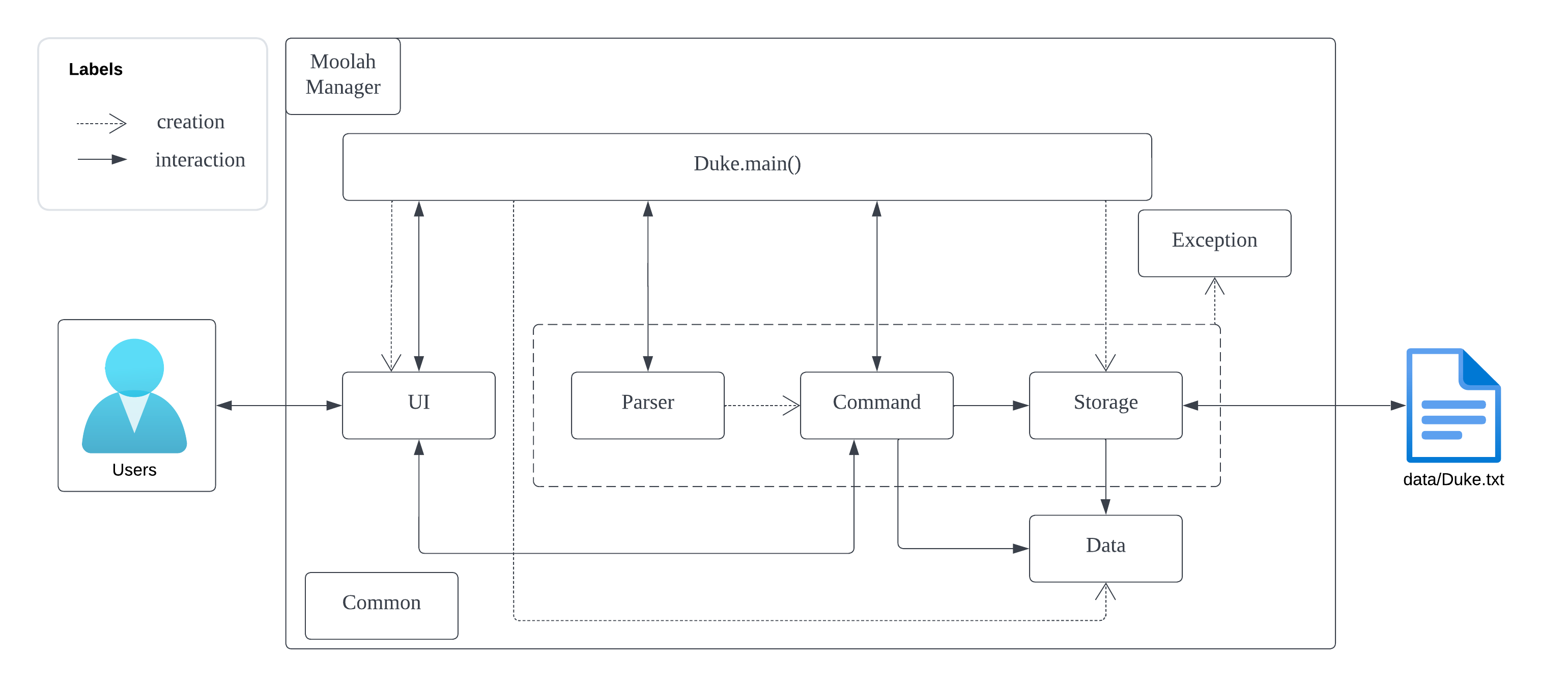
Figure 1: Architecture Diagram
The Architecture Diagram shown above explains the high-level design of Moolah Manager.
The Duke class contain the main method which holds the responsibility for the following:
- On application launch, it will initialise the
UI,StorageandDatacomponents. - During application execution, it will interact with
UI,Parser,Commandcomponents to execute the command entered by the users. - On any exception caught, it will handle the exception and interact with the
UIto display the error message.
Common represents a collection of classes or enums used by multiple components.
The rest of the application consists of six components:
UI: The user interface of Moolah ManagerParser: Parser for user’s entered command.Command: The command executor.Data: Holds the data of the application in memory.Storage: File I/O to store the data onto the hard disk.
How the Architecture Components Interact with Each Other:
The sequence diagram below shows how the components interact on command budget b/1000.
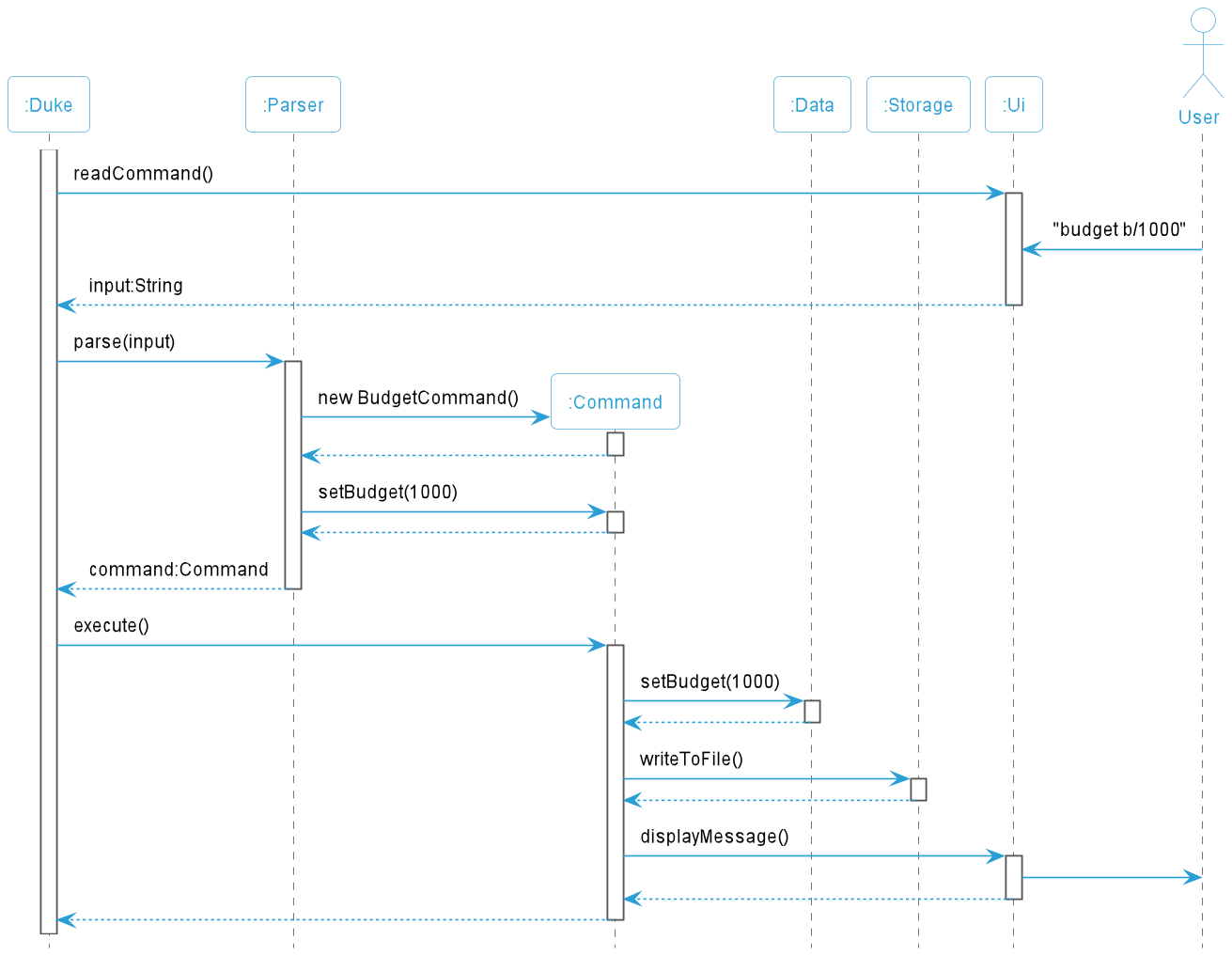
Figure 2: Architecture Interaction
The section below gives more detailed description of each component.
Written by: Chia Thin Hong
4.2. Command Component
The Command component is represented by a command package and a ListAndStats package. The packages contain all the
classes that is part of the data stored by Moolah Manager. Within the command package, there are many classes,
each corresponding to all of our commands which are supported by the application. The other package contains the
ListCommand and StatsCommand commands.
The AddCommand class contains the operations pertaining to adding a transaction into the list of transactions.
The BudgetCommand class contains the operations pertaining to setting the budget for the user.
The ByeCommand class contains the operations pertaining to exiting the program.
The CommandTag class consists of all the tags that the program parses.
The DeleteCommand class contains the operations pertaining to deleting a transaction from the list of transactions.
The EditCommand class contains the operations pertaining to editing a transaction from the list of transactions.
The FindCommand class contains the operations pertaining to searching the list of transactions for transactions that
match the inputted keywords.
The HelpCommand class contains the operations pertaining to displaying help messages for the user.
The ListCommand class contains the operations pertaining to listing all transactions.
The PurgeCommand class contains the operations pertaining to deleting all transaction from the list of transactions.
The StatsCommand class contains the operations pertaining to getting statistics based on your list of transactions.
The structure of the command component in Moolah Manager is illustrated in the class diagram below:
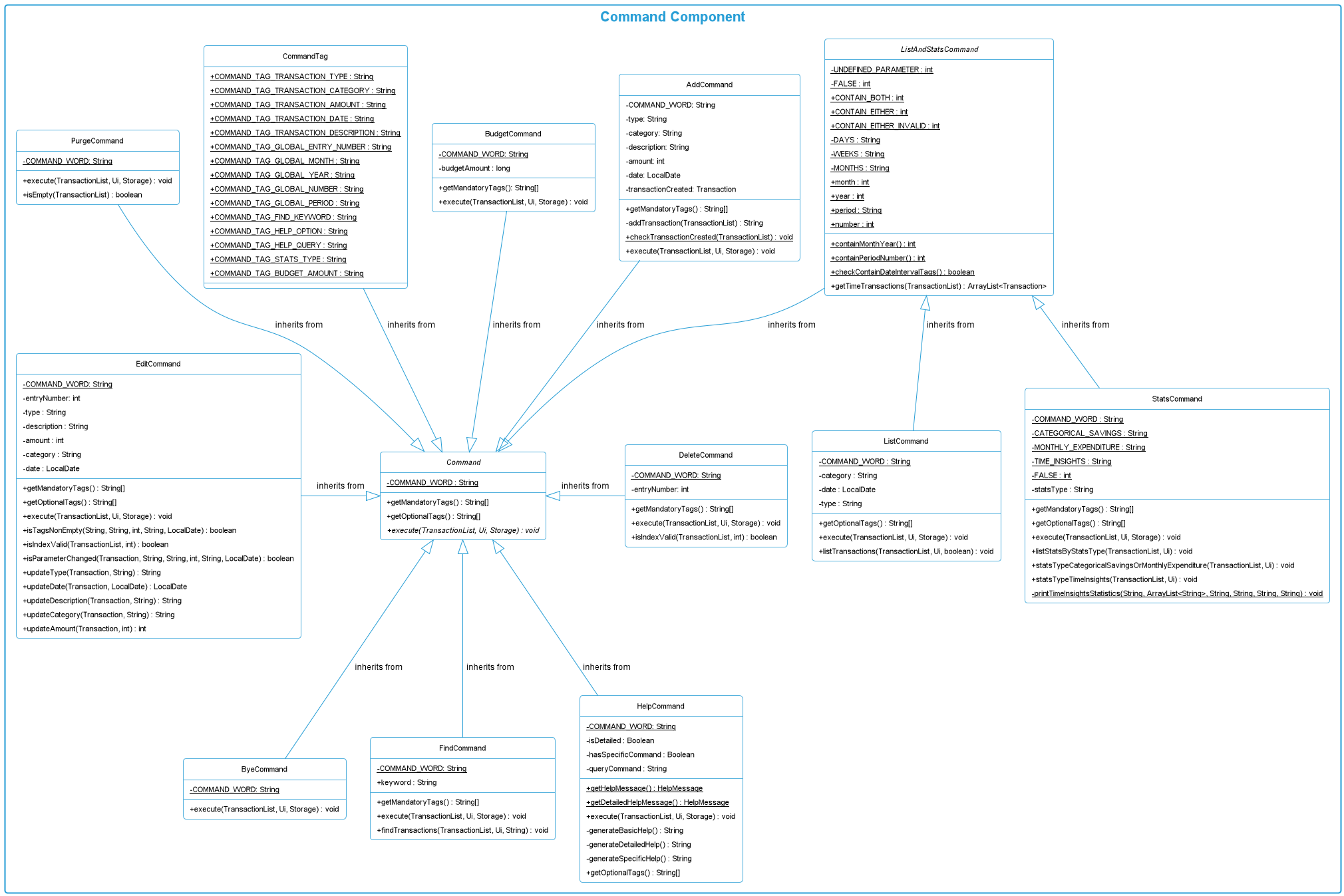
Figure 3: Class Diagram for Command Component
Written by: Brian Wong Yun Long
4.3. Data Component
The Data component is represented by a data package which consists of all the classes that is part of the data stored
by Moolah Manager. Within the data package, a transaction package, a budget class and a transactionList class is
stored.
The budget class is a representation of the monthly budget of the users. Operations related to viewing the budget
and generating budget reminders, tips and advices are implemented within this class.
The transactionList class is a representation of a list of transactions, and the
operations related to the transaction list are implemented within this class.
Within the transaction package, the following classes are stored:
- Transaction
- Income
- Expense
The structure of the data component in Moolah Manager is illustrated in the class diagram below:
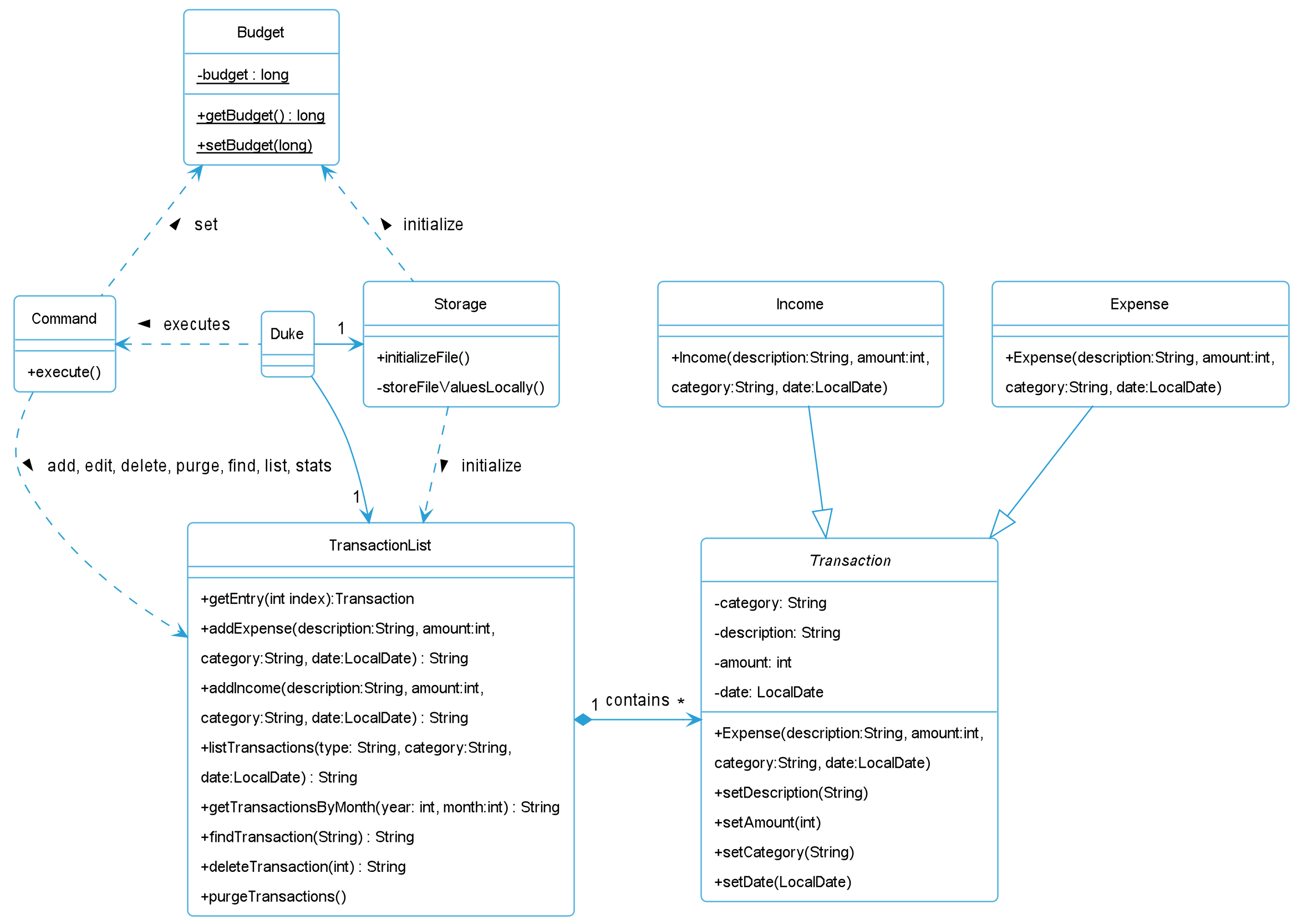
Figure 4: Class Diagram for Data Component
From the class diagram, it can be seen that the transactionList contain the methods for CRUD operations to the list, such as getting, adding, editing, deleting and purging of transaction(s) in the list.
The Transaction class is the abstract class of an Income or an Expense. A more detailed explanation on the
implementation on the transactions can be viewed under Section Implementation for Transaction.
How the Data Component Interacts:
- When MoolahManager starts running, the
Dukeclass will initialize aStorageobject which will attempt to read from the file and initialize bothbudgetandtransactionList. The temporarytransactionListcontaining all the stored transaction records will be returned by theStorage. Based on the whether the initialization is successful, the corresponding constructor will be called to initialize atransactionListobject which will be used throughout the application running time to hold thetransactionsadded.
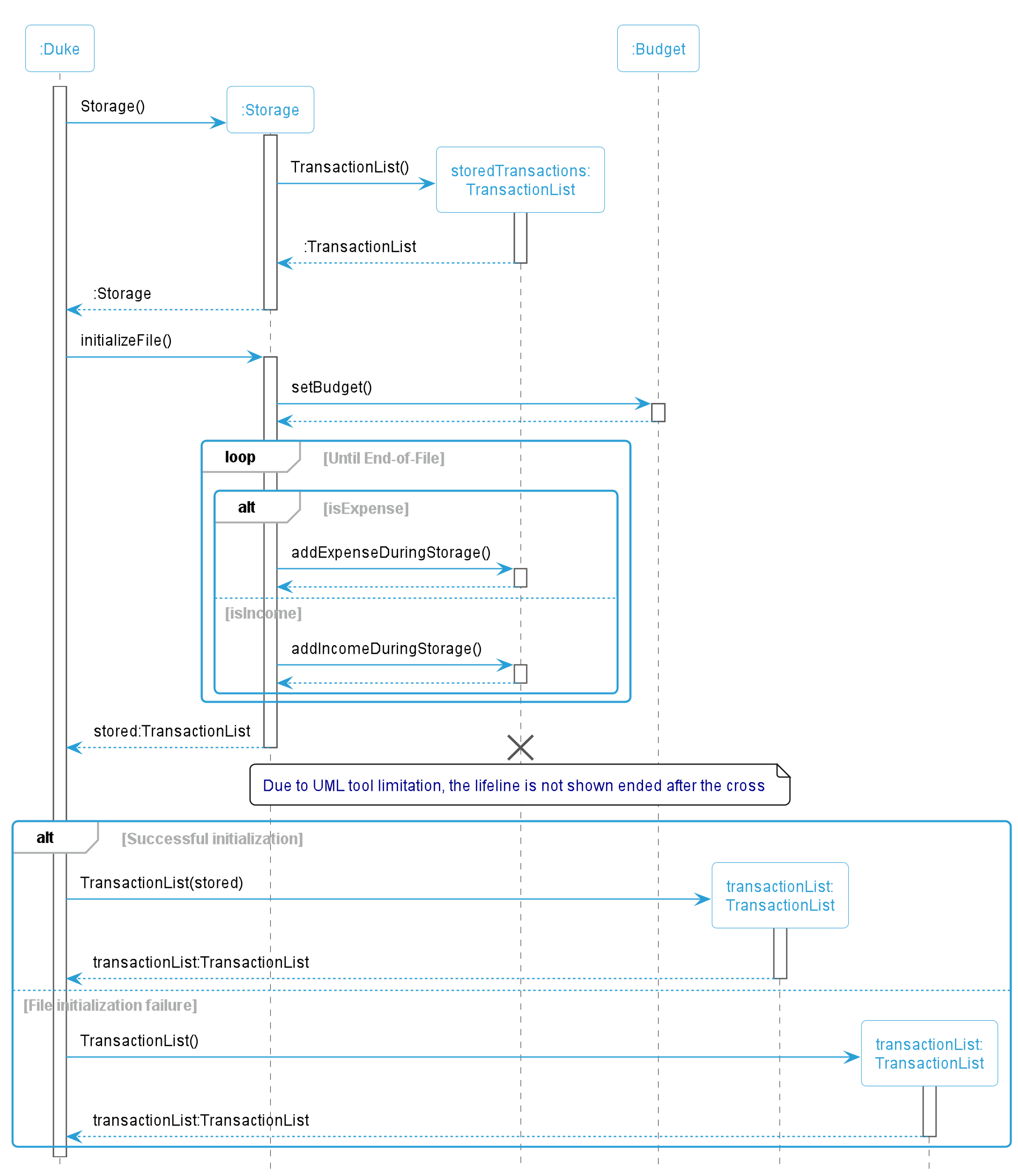
Figure 5: Sequence Diagram for Creation of Transaction List
-
A transaction (either an income or expense) is created by an
addCommandclass, can be modified by aneditCommandclass and can be deleted by adeleteCommandorpurgeCommandclass. These interactions are described in further detail under each command section below. -
The monthly budget can be updated by
budgetcommand.
Written by: Chia Thin Hong
4.4. Storage Component
The Storage component is a standalone class. It utilises its sub-methods and methods from external classes to perform it’s read and write functions.
The structure of Storage can be seen below.
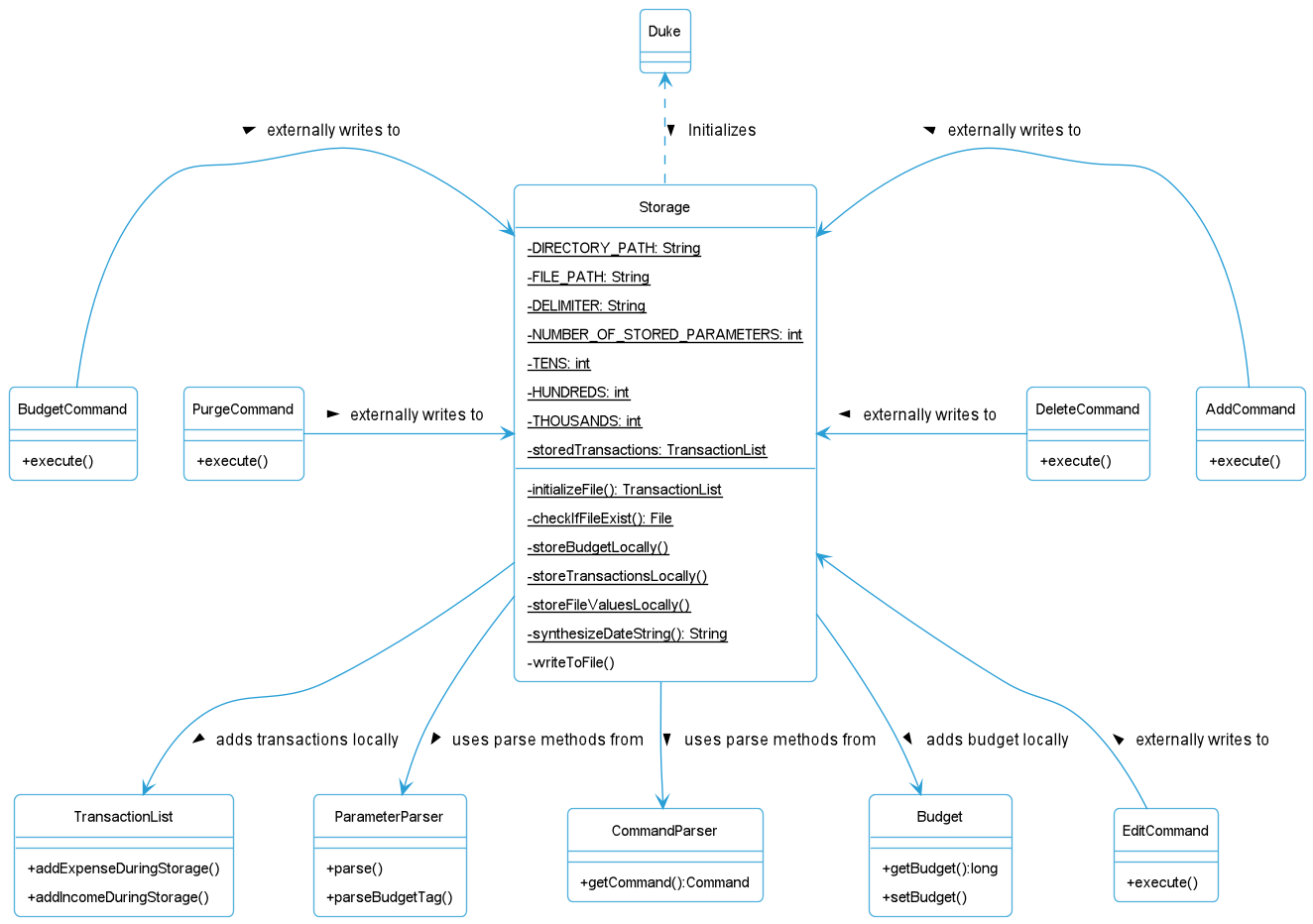
Figure 6: Class Diagram for Storage Component
DukeinitializesStorageandStorage#initializeFileis called.- During the initialization , parser methods from
CommandParserandParameterParserwould be used to process the entries withinDuke.txt. Methods fromBudgetandTransactionListwould be used for the storage ofBudgetamount andTransactionListentries into the program. TransactionListis returned toDukeafter the storage of entries withinDuke.txt.- After initialization and upon user input,
Commandclasses such asAddCommandcan call forStorage#writeToFilemethod in order to update the contents withinDuke.txt.
Written by: Yong Chin Han
4.5. Parser Component
The Parser component consists of two main parsers: CommandParser and ParameterParser. Together, both these
parsers are used to generate a command object with its accurate parameters according to the input from the UI.
The structure of the data component in Moolah Manager is illustrated in the class diagram below:
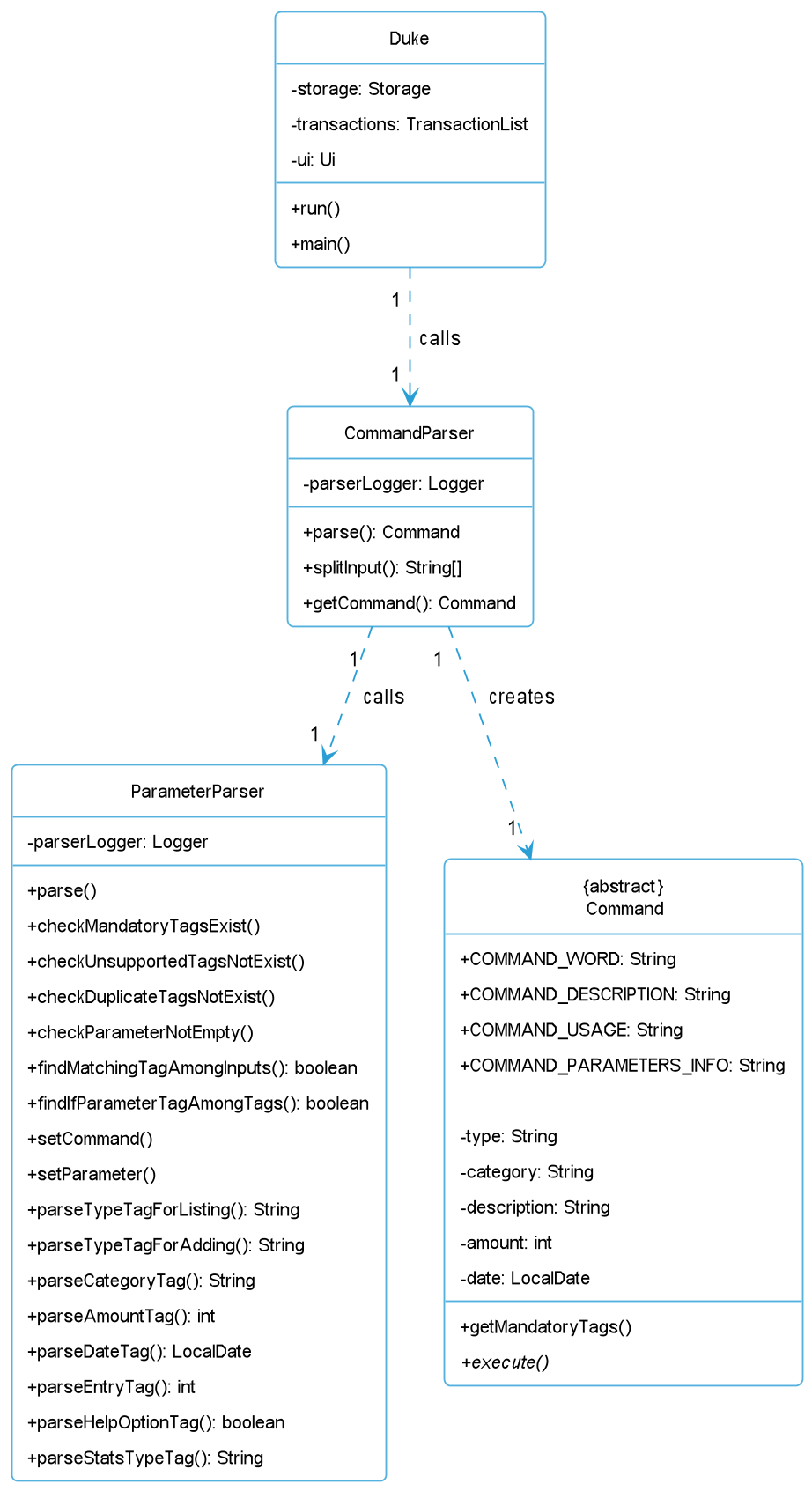
Figure 7: Class Diagram for Parser Component
After run() is called by main() in Duke, the CommandParser is first called to parse the command. The initial
input is split into the commandWord and parameters using splitInput(). Next, the command word is parsed using
getCommand(). With the new command created, the parameters are then parsed by calling ParameterParser.parse()
In ParameterParser, multiple checks are done to ensure that the userInput is accurate. For example, checks are done
to confirm that all mandatory tags are filled, that no unsupported tags are used, no duplicate tags, no tags are
without parameters and finally that the formats of parameters are accurate. After all the checks are donesetCommand
is called to customize the command accordingly.
With the checked and accurate commands and parameters, the command is then executed by Duke
Written by: Paul Low
4.6. UI Component
The UI component is represented by a Ui class that handles the retrieval of user input and display of relevant information and error messages for the application.
Static messages are pre-defined in the HelpMessages, InfoMessages and ErrorMessages enum classes belonging to the Common package, while dynamic messages
such as the transactions list and statistics are generated during the execution of the application.
There are three types of pre-defined static messages:
- Help messages detail the available commands and usage examples for the application.
- Info messages describe the functionalities of the application.
- Error messages provide user-friendly information about the exceptions that have been caught.
The structure of the UI component in Moolah Manager is illustrated in the class diagram below:
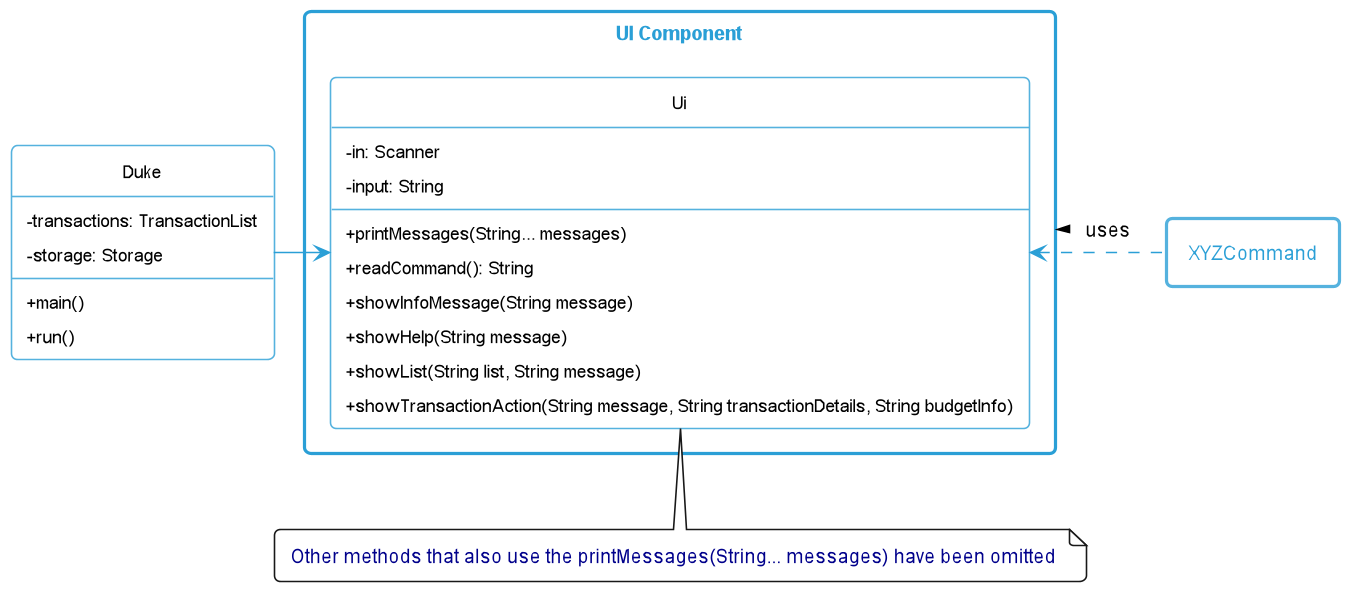
Figure 8: Class Diagram for UI Component
As seen from the class diagram, every command that needs to print to the system output will have to call the methods from the Ui class. There are two important methods that
developers should take note of.
- The
readCommand()method is only called from theDukeclass to read user input. - The
printMessages()method is called by all other methods in theUiclass to print messages to the system output. Examples of the caller methods includeshowInfoMessage(),showHelp(),showList()andshowTransactionAction(). These caller methods are called from the rest of the application depending on what type of messages are to be printed to the user.
Written by: Chua Han Yong Darren
4.7. Common Component
The Common component consists of the classes that are used by multiple components.
Constantsclass represents all the constant settings of the application.DateFormatsenum class provides the approved date formats for input and output.HelpMessagesenum class stores the help messages that detail the available commands and usage examples for the application.InfoMessagesenum class stores the info messages that describe the functionalities of the application.ErrorMessagesenum class store the error messages that provide information on exceptions that have been caught.
The class diagram below shows some types of information that are stored for the Add command in these classes.
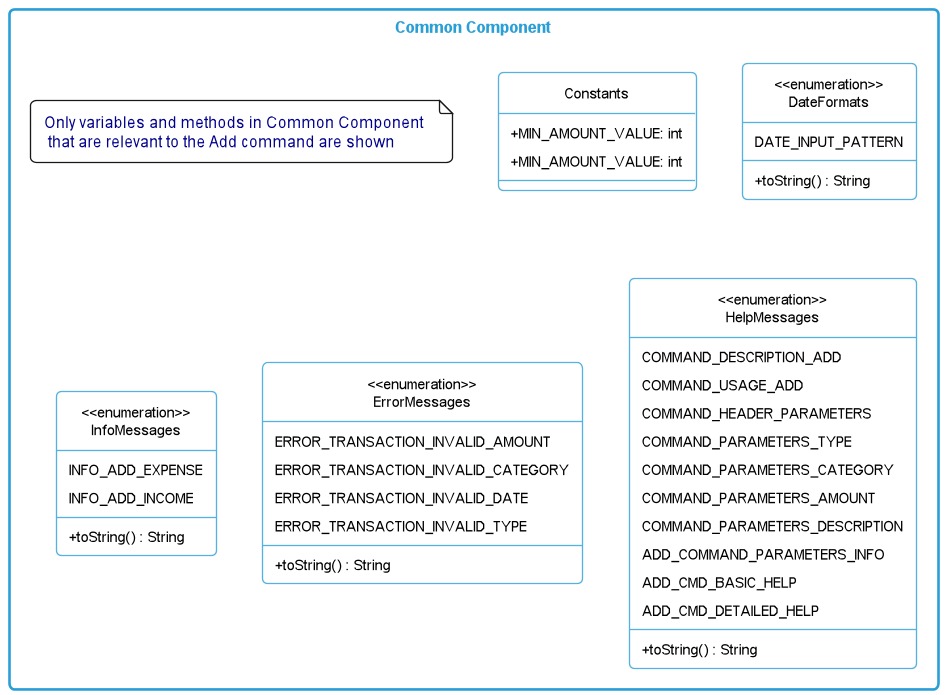
Figure 9: Class Diagram for Common Component
Written by: Chua Han Yong Darren
5. Implementation for Managing Transactions
5.1. Overview
Moolah Manager enables users to add, delete and edit their monetary transaction entries on a regular basis to keep their records up-to-date. Some of the information that needs to be stored include the type of transaction, category it belongs to, amount, date and its description. As users eventually need to view their past records, it is imperative that these records are stored in a central list that is easily retrievable when needed.
Written by: Brian Wong Yun Long
5.2. Proposed Implementation
Each Transaction object in Moolah Manager represents a transaction record, which can be of Income or Expense type. Below is a class diagram that illustrates
the attributes that are contained within each transaction and how they are associated with the TransactionList. Note that non-important methods and variables have been omitted
from the class diagram below for simplicity.
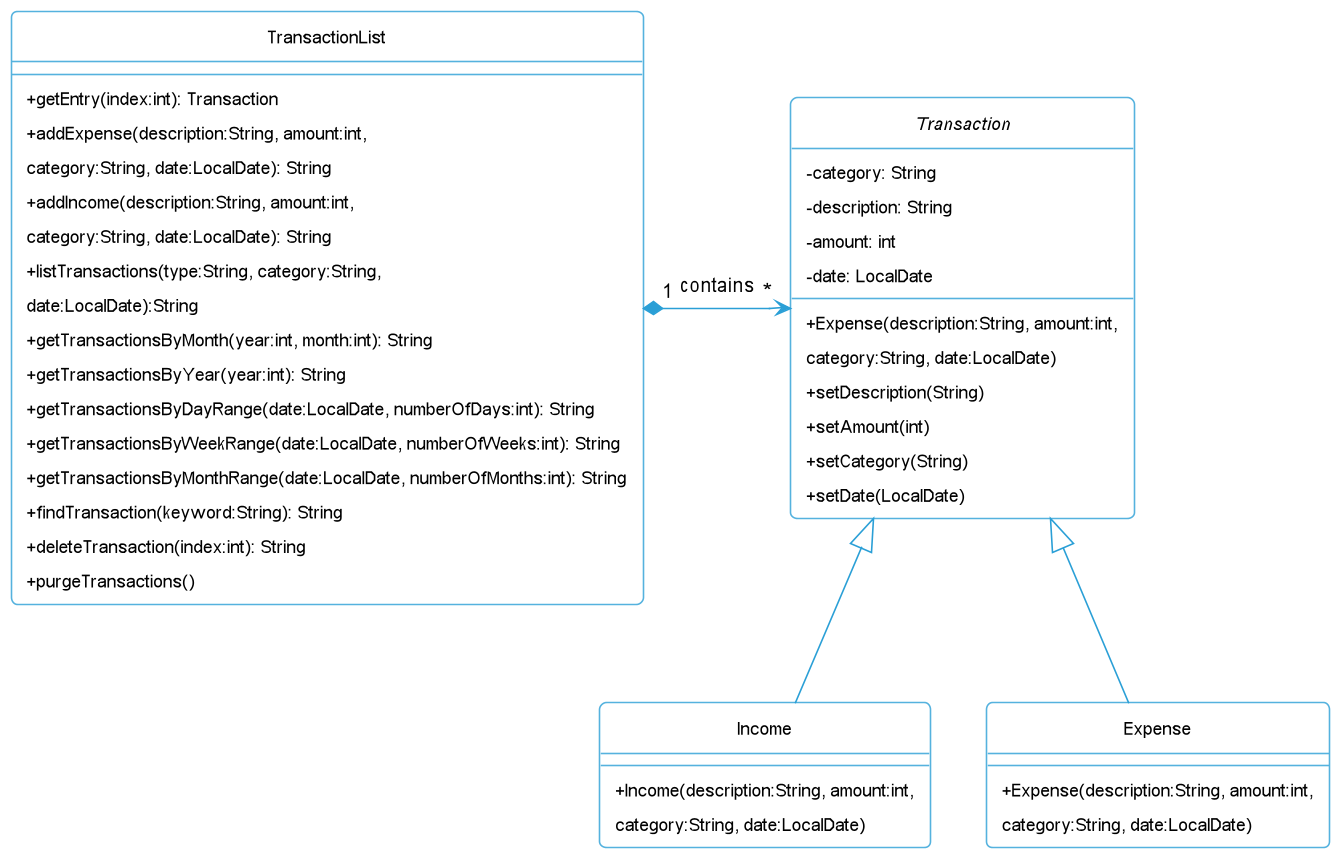
Figure 10: Class Diagram for Transaction
The TransactionList represents a dynamic array list that can store multiple Transaction objects, whereby each object contain the following mandatory attributes:
| Attribute | Description |
|---|---|
category |
The type of transaction. It should either be expense or income. |
description |
A category for the transaction. It can be any word without numeral, symbol or spacing. |
amount |
The amount of the transaction. It is a positive whole number ranging from 1 to 10000000 (Ten Million). |
date |
The date when the transaction took place on. It must be in ddMMyyyy format, e.g. 29102022. |
description |
More information regarding the transaction. It is any word without any spacing. |
The main CRUD operations in TransactionList that facilitates the data manipulation of Transaction object(s) include:
addIncome()- Adds an incomeTransactionentry into theTransactionList.addExpense()- Adds an expenseTransactionentry into theTransactionList.editIncome()- Edits an incomeTransactionentry from theTransactionList.editExpense()- Edits an expenseTransactionentry from theTransactionList.deleteTransaction()- Deletes aTransactionentry from theTransactionList.purgeTransactions()- Deletes allTransactionentries from theTransactionList.getEntry()- Gets a specificTransactionentry from theTransactionList.
Following which, TransactionList provides methods such as listTransactions(), findTransactions(), getTransactionsByMonth(), getTransactionsByYear(),
getTransactionsByDayRange(), getTransactionsByWeekRange() and getTransactionsByMonthRange() to enable users to view their past transaction records.
Users will be able to retrieve transactions over the last N days, weeks or months as the getTransactionsByXRange() computes the difference in the dates between
today’s date and the previous date.
Written by: Chua Han Yong Darren
5.3. Add Command
This feature allows the local and external (handled by Storage class) storage of transaction entries by the user.
The AddCommand inherits properties from the abstract Command class.
AddCommand is dependent on CommandParser which accesses its COMMAND_WORD and creates a new AddCommand object which would be returned to Duke.
Duke is associated to AddCommand by calling for AddCommand#execute().
It is also associated with TransactionList, Ui, Storage, which are used within AddCommand methods like AddCommand#execute() and AddCommand#addTransaction().
Lastly it is also associated with ParameterParser which calls forAddCommand#getMandatoryTags() that retrieves the mandatory tags (which itself is taken from CommandTag).
The relationship between the classes are shown below. Non-essential info has been omitted for simplification purposes.
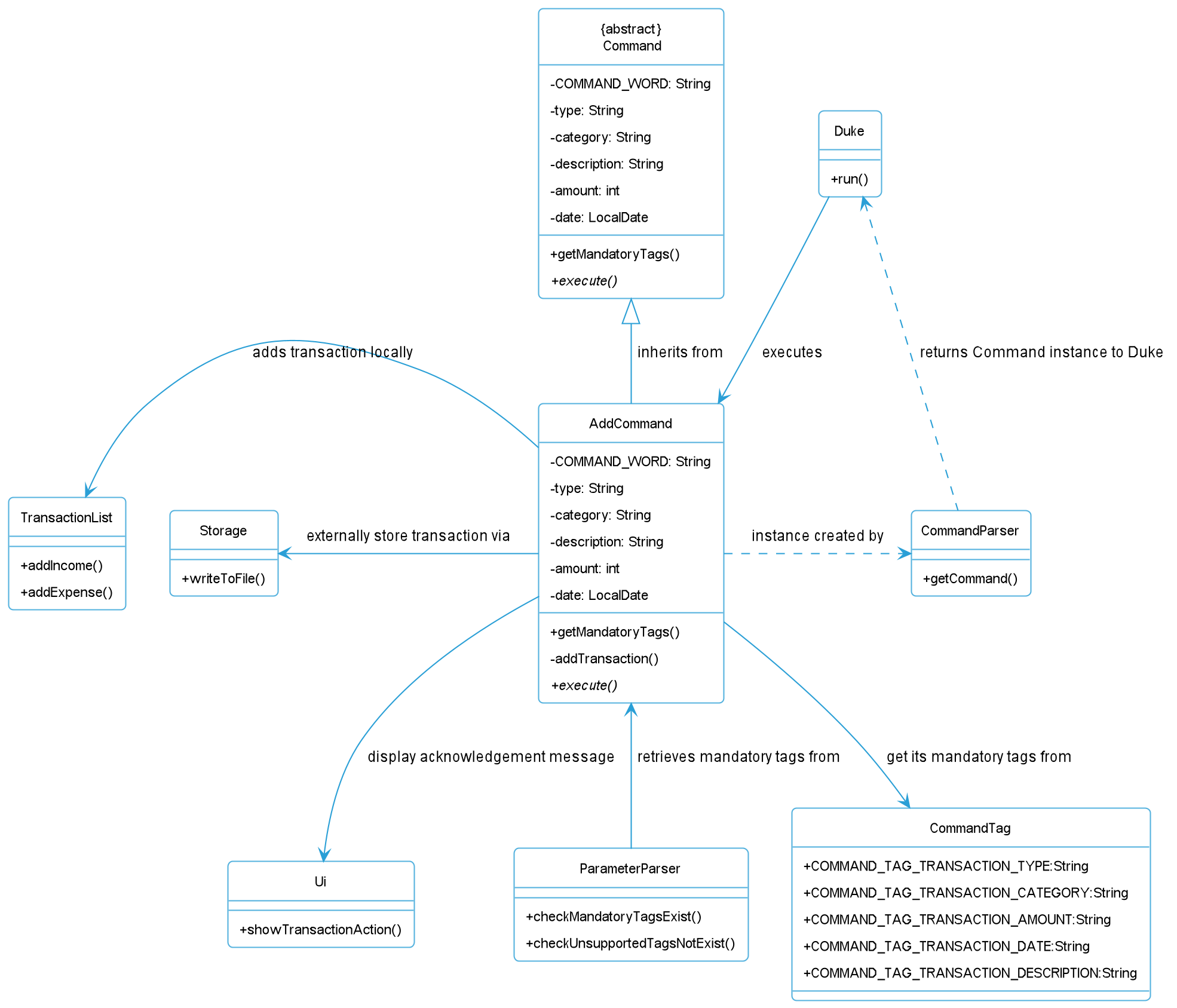
Figure 11: Class Diagram for Add Command and Related Classes
These are the important operations performed within the AddCommand class, with task description:
-
AddCommand#execute(TransactionList transactions, Ui ui, Storage storage)- Adds aTransactionobject to theTransactionList transactionsArrayList viaAddCommand#addTransaction()that calls fortransactions#addIncome()ortransactions#addExpense()based on the type of transaction. For successful additions of the Transaction object to the Arraylist, The UI would be called to display the acknowledgement message to the interface. Also, the storage#writeToFile() method would be called to store the newly updated transactions values in the duke.txt file. -
AddCommand#getMandatoryTags()- This method returns the mandatory tags which should be used in the user input. It is used externally by ParameterParser to verify if the user input contains the mandatory command tags, to correctly store the Transaction object in the program.
The structure of the application focusing on the Add command is illustrated in the simplified sequence diagram below:
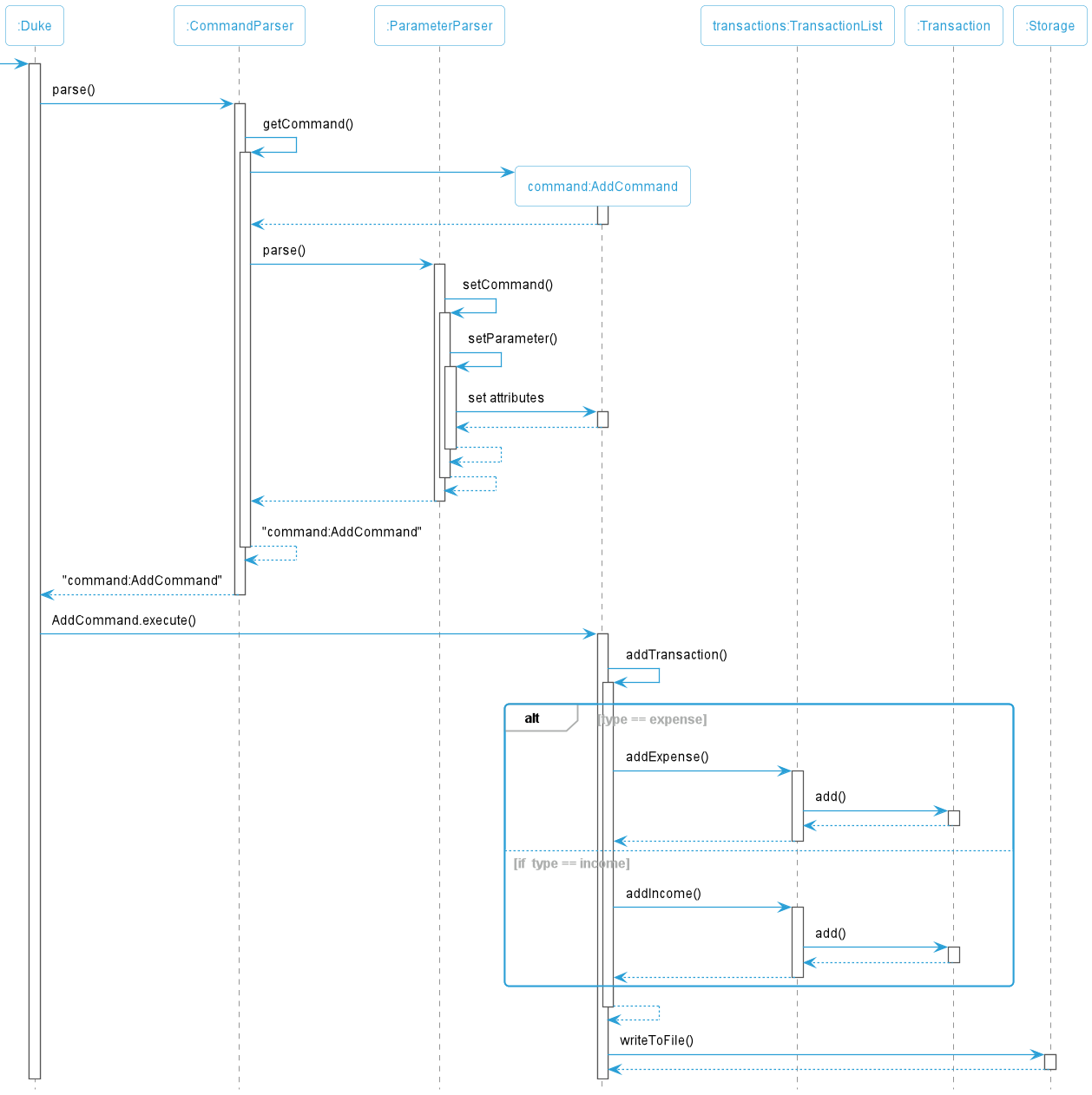
Figure 12: Sequence Diagram for Add Command
In a command like add t/expense c/food a/20 d/13092022 i/NIL OR add t/income c/salary a/2000 d/30092022 i/jan_salary
- The user input would be parsed via
CommandParser.parse()method. - In
CommandParser.parse(),getCommand()would be called which initializesAddCommand. Then it would callParameterParser.parse(). - In
ParameterParser.parse(), the user input will be parsed further before the data is stored intoAddCommandviaParameterParser.setCommand(), which calls forParameterParser.setParameter()to set the attributes within the AddCommand instance. - The
CommandParser.parse(), would then return the instance ofAddcommandto Duke class. AddCommand.execute()would be called, in which it will attempt to add its objects to theTransactionListbased on the type of transaction, either income or expense.- After the storage or the user input into
TransactionList,Storage.writeToFile()would write the contents ofTransactionListto the storage file, duke.txt.
Written by: Yong Chin Han
5.4. Edit Command
The EditCommand inherits properties from the abstract Command class. The inheritance of Command from EditCommand is
shown below.
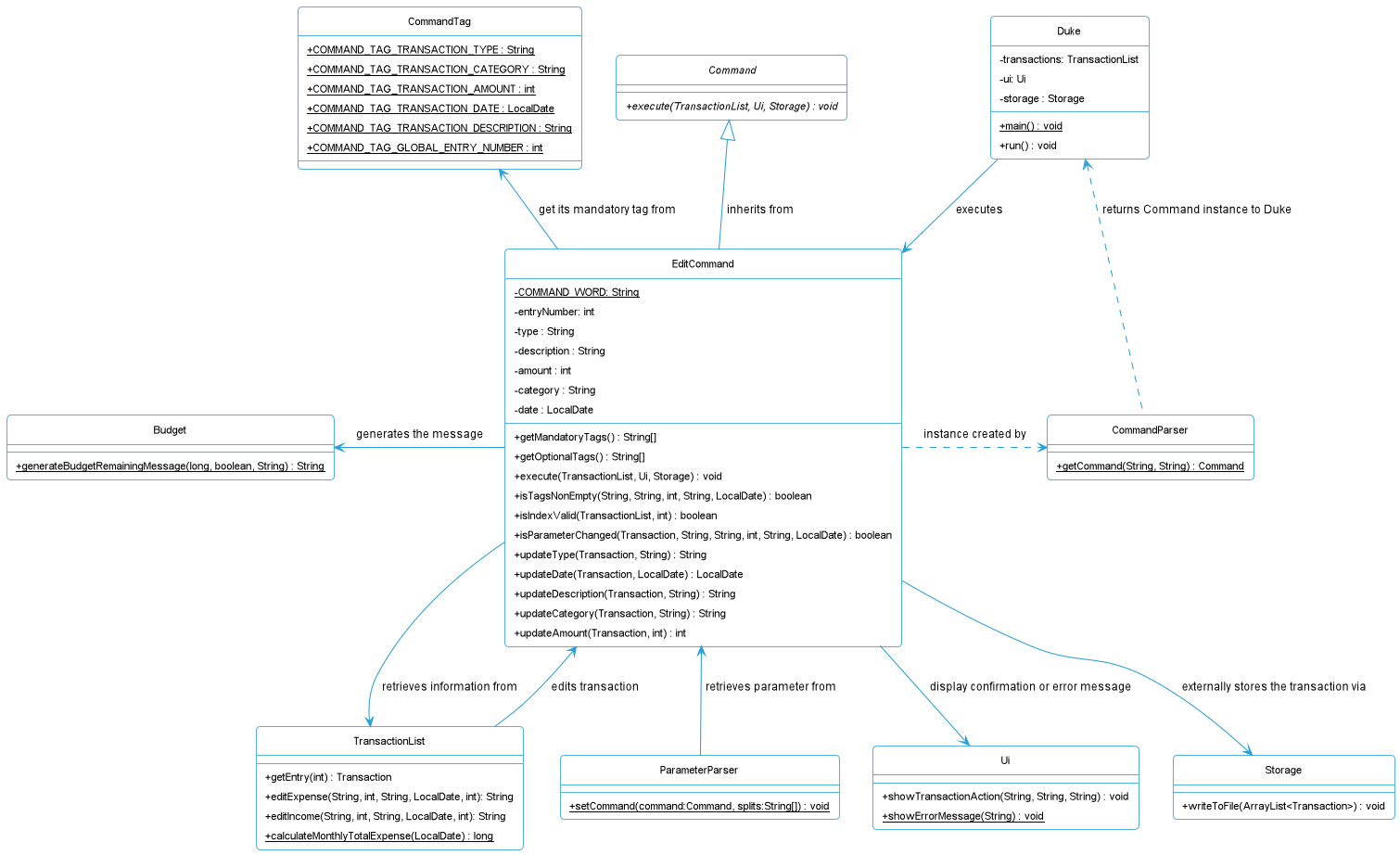
Figure 13: Class Diagram for Edit Command
The full command for edit is edit [e/ENTRY] [t/TYPE] [c/CATEGORY] [a/AMOUNT] [d/DATE] [i/DESCRIPTION].
For example, if ‘edit’ is called, the specific entry inputted in the command is edited based on the parameters inputted. Only the entry and at least one tag is needed for this command to work.
In a command like edit e/2 t/expense c/food a/10 d/20102022 i/chicken:
-
The
main()method in Duke callsrun()in Duke. Theuireads the command viaui.readCommand()and parses it throughCommandParser.parse(). - Within
CommandParser.parse(), a few functions are called internally.spiltInput()is called which splits the command from the parameter.getCommand()is called which searches for the command.ParameterParser.parse()is called.
- Within
ParameterParser.parse(), a few functions are called internally as well.checkMandatoryTagsExist()is called where the parameters are checked for all required tags exist based on the command.checkUnsupportedTagsNotExist()is called to check if the parameter do not contain any unsupported tags based on the command.checkDuplicateTagsNotExist()is called to check if the parameter do not contain any duplicate tags.checkParameterNotEmpty()is called to check that the parameter inputted is not empty.- Once all these checks are successful,
setCommand()is called.
- Within
setCommand(), more functions are called internally.setParameter()is called to set the index of the transaction to be deleted.- The setting is done via
command.setEntryNumber()which takes in the parameter and executes it in the DeleteCommand Class. - The parameter, however, needs to be further parsed through the execution of the
parseEntryTag()function. - It converts the parameter, which is currently a
String, to aInt.
- The edit command is undergoing execution in
command.execute()which will call functions within the EditCommand Class.- The index, which is the local
entryNumbervariable, goes under further checks by ascertaining whether it is greater than the total number of transactions in the list or lesser than or equal to zero. - It tells the total size via the local
numberOfTransactionsvariable which takes the value called bytransactions.size()which is located in the TransactionList class. - If the checks fail, i.e. the index is invalid,
isInputValidis set as false.
- The index, which is the local
- The if-else statements does the following:
- Retrieves the transaction to be edited via
transactions.getEntry(). - Checks if the local variable
newTypeisnull. This implies that not/expenseort/incomewas indicated by the user. The program then retrieves the type of transaction viaentry.getType() - It then splits to another if-else branches which handles the edits using either
transactions.editExpense()ortransactions.editIncome(). - For each of these branches, should the optional tag be left blank, retrieves the relevant field using the getter functions.
- In order to edit the following transaction, it has to be deleted first and then reinserted. This is done by calling
transactions.deleteTransaction()and then inserts back in at the same spot which is handled bytransactions.add()at the specific entry.
- Retrieves the transaction to be edited via
- The display shows the successful deletion via
ui.showTransactionAction()and writes it to file bystorage.writeToFile().
The sequence diagram below shows the interactions of a successful execution of the EditCommand.
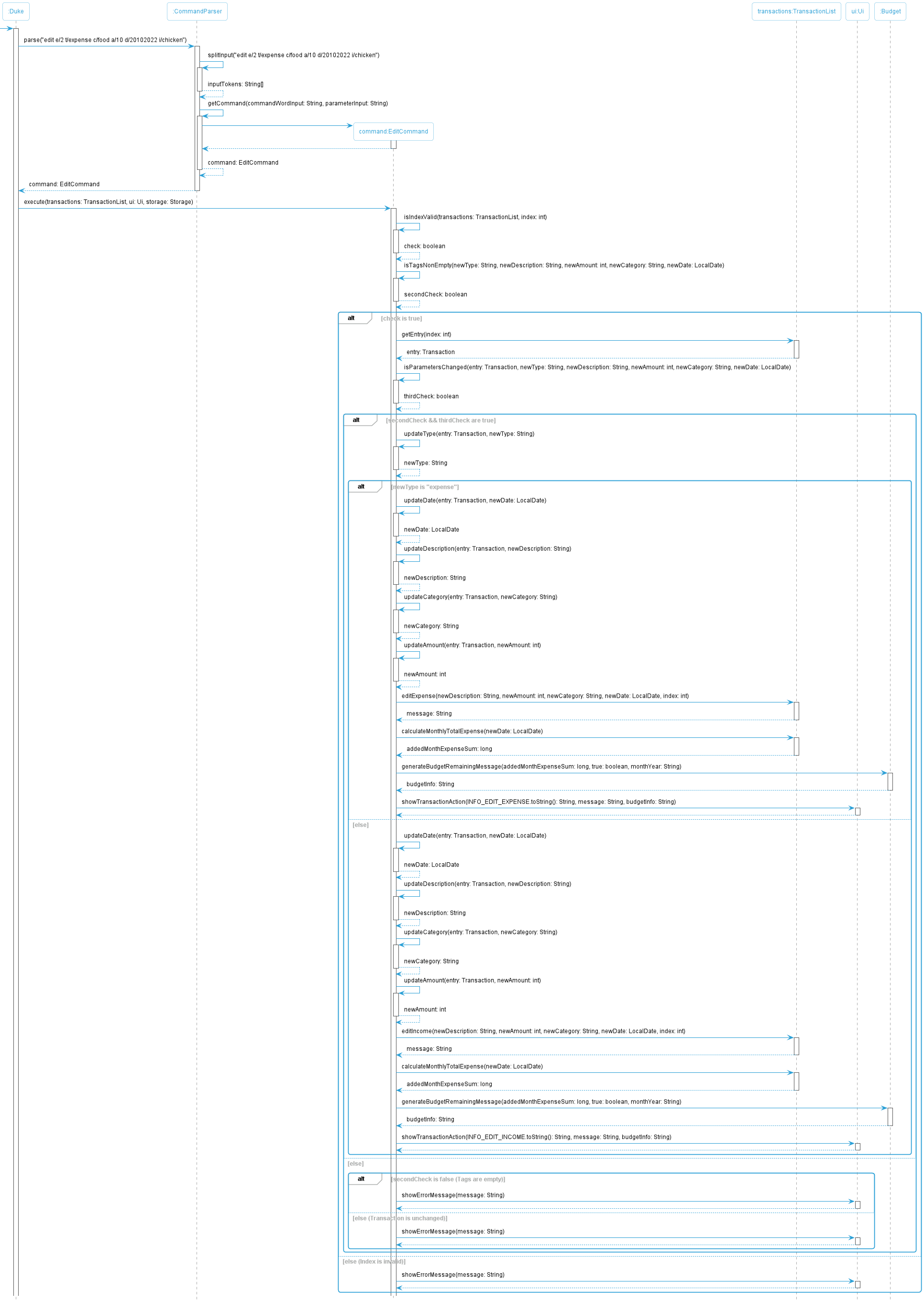
Figure 14: Sequence Diagram for Edit Command
Written by: Brian Wong Yun Long
5.5. List Command
The full command for list is list [t/TYPE] [c/CATEGORY] [d/DATE]
For example, if ‘list’ is called, all transactions that are present in Moolah Manager will be listed out
Adding tags such as year, month, day, type, category will list all transactions that apply to that tag.
The structure of the application focusing on the list command is illustrated in the class diagram below:
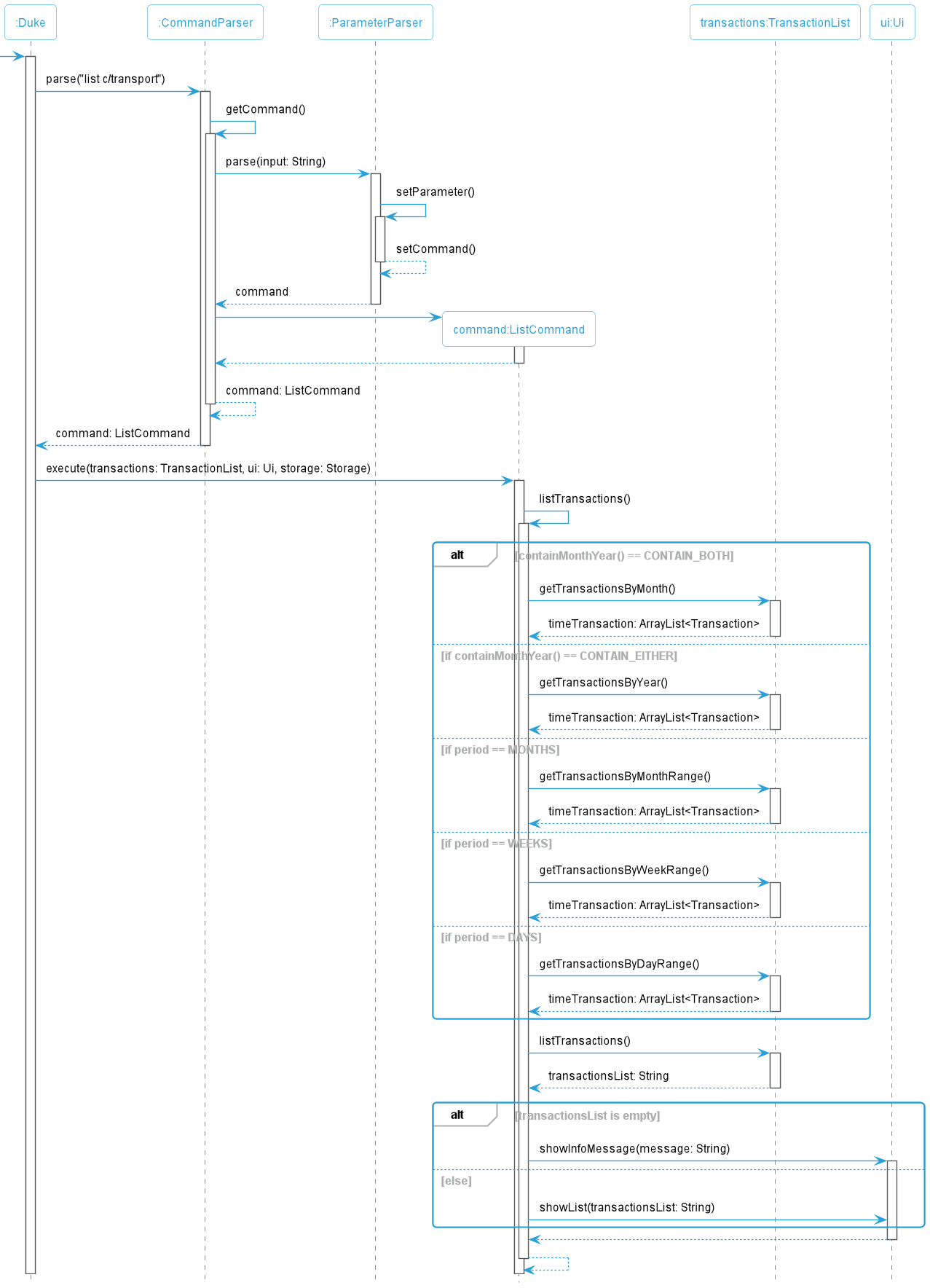
Figure 15: Sequence Diagram for List Command
In a command like list c/transport
- The
main()method in Duke callsrun()in Duke. The command is parsed throughCommandParser.parse(). - Within
CommandParser.parse(),getCommand()is called to obtain the command, beforeParameterParser.parse()is called - Various checks are done through functions within
parameter.parse() - The list command is undergoing execution in
command.execute()which will calllistTransactions()in ListCommand - Depending on the various tags that could be used in list Command, the List Class will call the relevant
getTransactionfunction to obtain an ArrayList of time Transactions. - Next,
getCommand()is called to obtain a String of transactionList from the ArrayList. ui.showTransactionsList()is then executed since parameters are present, causing the matching transactions to be displayed.
Written by: Paul Low
5.6. Find Command
The FindCommand class provides the search functionality for finding a specific or few transactions from the list of transactions in Moolah Manager.
Using the command find k/KEYWORD, the criteria for retrieving the matching transactions is based upon the partial or full match of the user KEYWORD input
compared with the description of each transaction object.
Figure 16 below is a class diagram for the Find command class and its associations with other classes that contribute to the listing of filtered
transactions. Some methods and variables have been omitted from the class diagram for simplicity.
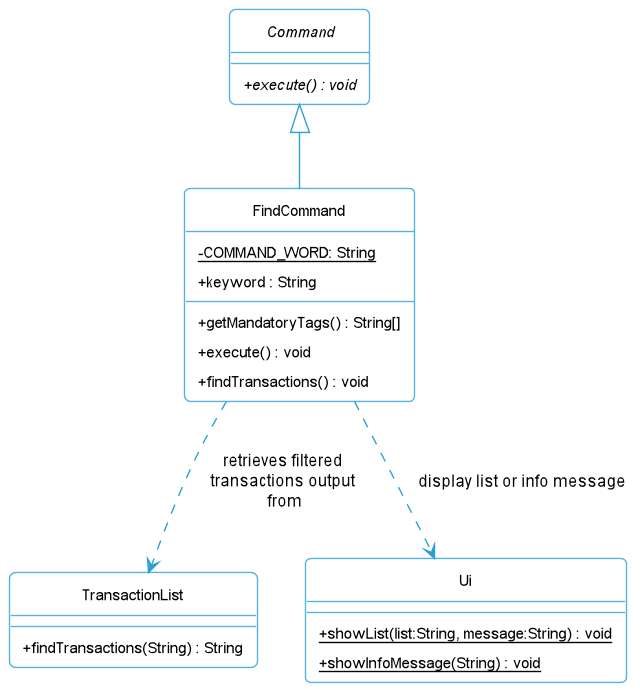
Figure 16: Class Diagram for Find Command
The sequence diagram below shows the interactions of a successful execution of the FindCommand, using an example of find k/bus_fare.
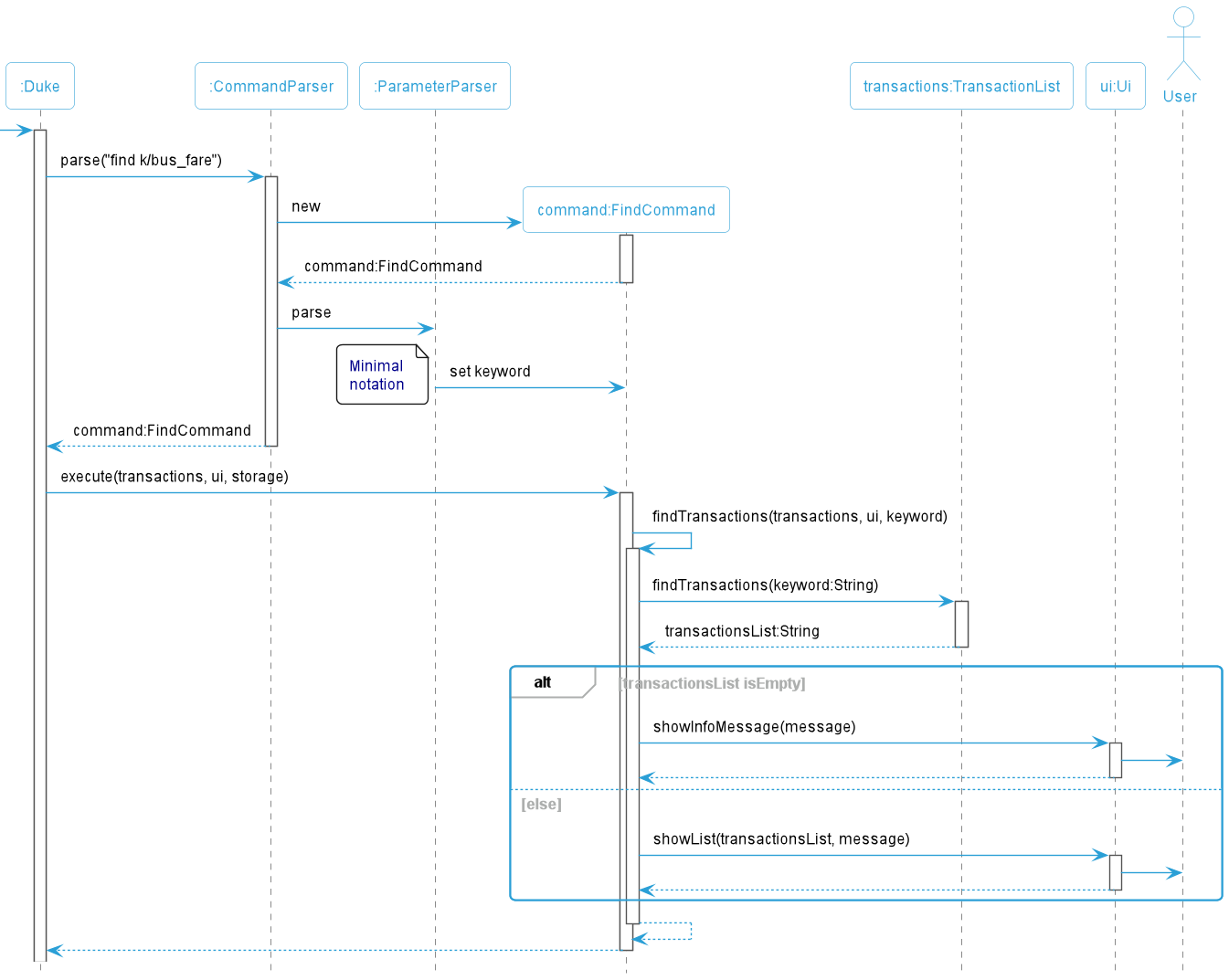
Figure 17: Sequence Diagram for Find Command
Referring to Figure 17, the following is a summarized steps of the interactions that FindCommand performs, with some higher level details in CommandParser and ParameterParser
omitted for simplicity.
- The user executes
find k/KEYWORDcommand with an intent to view a filtered list of transactions that match the search keyword, e.g.bus_fare. - The
CommandParser#parse()method will initialize theCommandobject withFindCommand, and thereafter, the initialization of thekeywordvariable is performed in theParameterParserclass. - In the
ParameterParserclass, various checks are performed to ensure that only a single search keyword without spaces has been entered. - Once all checks have passed,
FindCommandclass willexecute()whereby it will callFindTransactions()twice (once within itself, and the other on theTransactionListclass) to generate the list of filtered transactions. The purpose ofTransactionList#findTransactions()is to loop through allTransactionobjects fromArrayList<Transaction> transactions, checking if their description match the keyword given. Note that it is checked on a case-insensitive basis. - Matching
Transactionobjects will be appended into a formatted string and returned to theFindCommandclass. - If
FindCommandclass checks thattransactionsListstring is empty, it will callUi#showInfoMessage(). Otherwise,Ui#showList()method is called to display the transactions.
Written by: Chua Han Yong Darren
5.7. Delete Command
The DeleteCommand inherits properties from the abstract Command class. The inheritance of Command from DeleteCommand is
shown below.
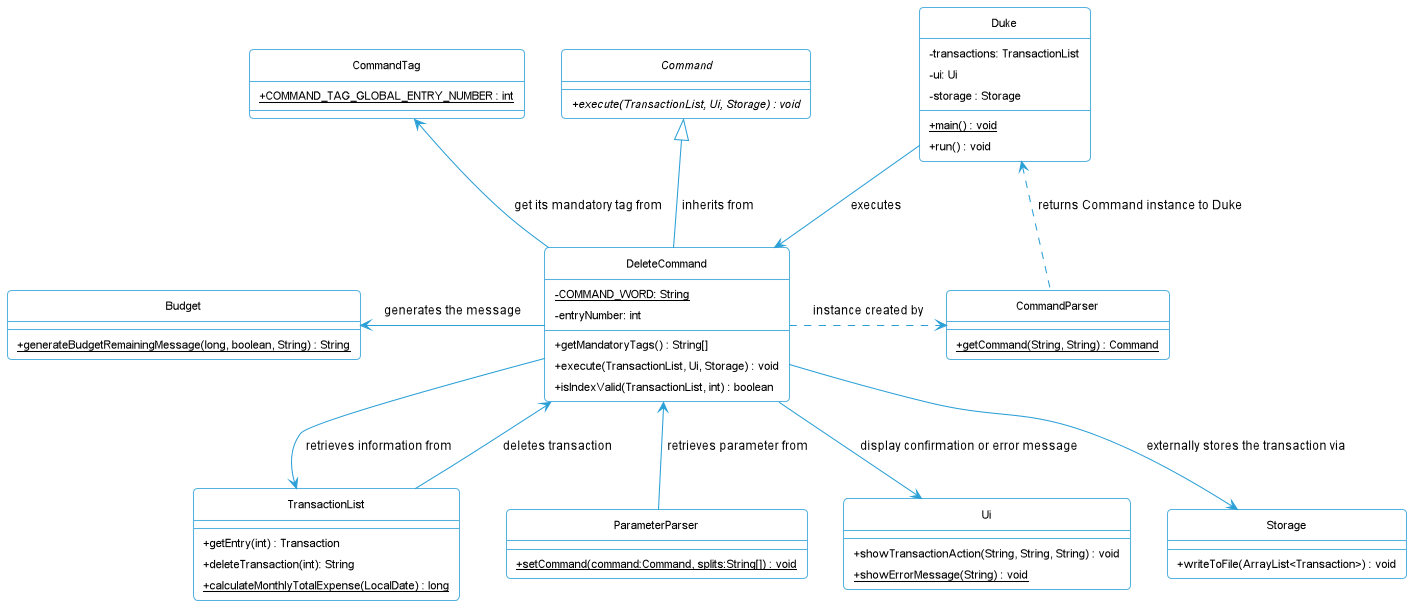
Figure 18: Class Diagram for Delete Command
The full command for delete is delete [e/ENTRY].
For example, if ‘delete’ is called, the specific entry inputted in the command is deleted from the list of transactions in
Moolah Manager.
In a command like delete e/2:
-
The
main()method in Duke callsrun()in Duke. Theuireads the command viaui.readCommand()and parses it throughCommandParser.parse(). - Within
CommandParser.parse(), a few functions are called internally.spiltInput()is called which splits the command from the parameter.getCommand()is called which searches for the command.ParameterParser.parse()is called.
- Within
ParameterParser.parse(), a few functions are called internally as well.checkMandatoryTagsExist()is called where the parameters are checked for all required tags exist based on the command.checkUnsupportedTagsNotExist()is called to check if the parameter do not contain any unsupported tags based on the command.checkDuplicateTagsNotExist()is called to check if the parameter do not contain any duplicate tags.checkParameterNotEmpty()is called to check that the parameter inputted is not empty.- Once all these checks are successful,
setCommand()is called.
- Within
setCommand(), more functions are called internally.setParameter()is called to set the index of the transaction to be deleted.- The setting is done via
command.setEntryNumber()which takes in the parameter and executes it in the DeleteCommand Class. - The parameter, however, needs to be further parsed through the execution of the
parseEntryTag()function. - It converts the parameter, which is currently a
String, to aInt.
- The delete command is undergoing execution in
command.execute()which will call functions within the DeleteCommand Class.- The index, which is the local
entryNumbervariable, goes under further checks by ascertaining whether it is greater than the total number of transactions in the list or lesser than or equal to zero. - It tells the total size via the local
numberOfTransactionsvariable which takes the value called bytransactions.size()which is located in the TransactionList class. - Should the above condition be true, it is no longer a valid input and the local
isInputValidvariable is set as false. - An exception is thrown if
isInputValidis false. Otherwise,transactions.deleteTransaction()is called to remove it.
- The index, which is the local
- The above function is called in the TransactionList class which does the following:
- Retrieves the transaction to be deleted via
transactions.get(). - Removes it via
transactions.remove().
- Retrieves the transaction to be deleted via
- The display shows the successful deletion via
ui.showTransactionAction()and writes it to file bystorage.writeToFile().
The sequence diagram below shows the interactions of a successful execution of the DeleteCommand.
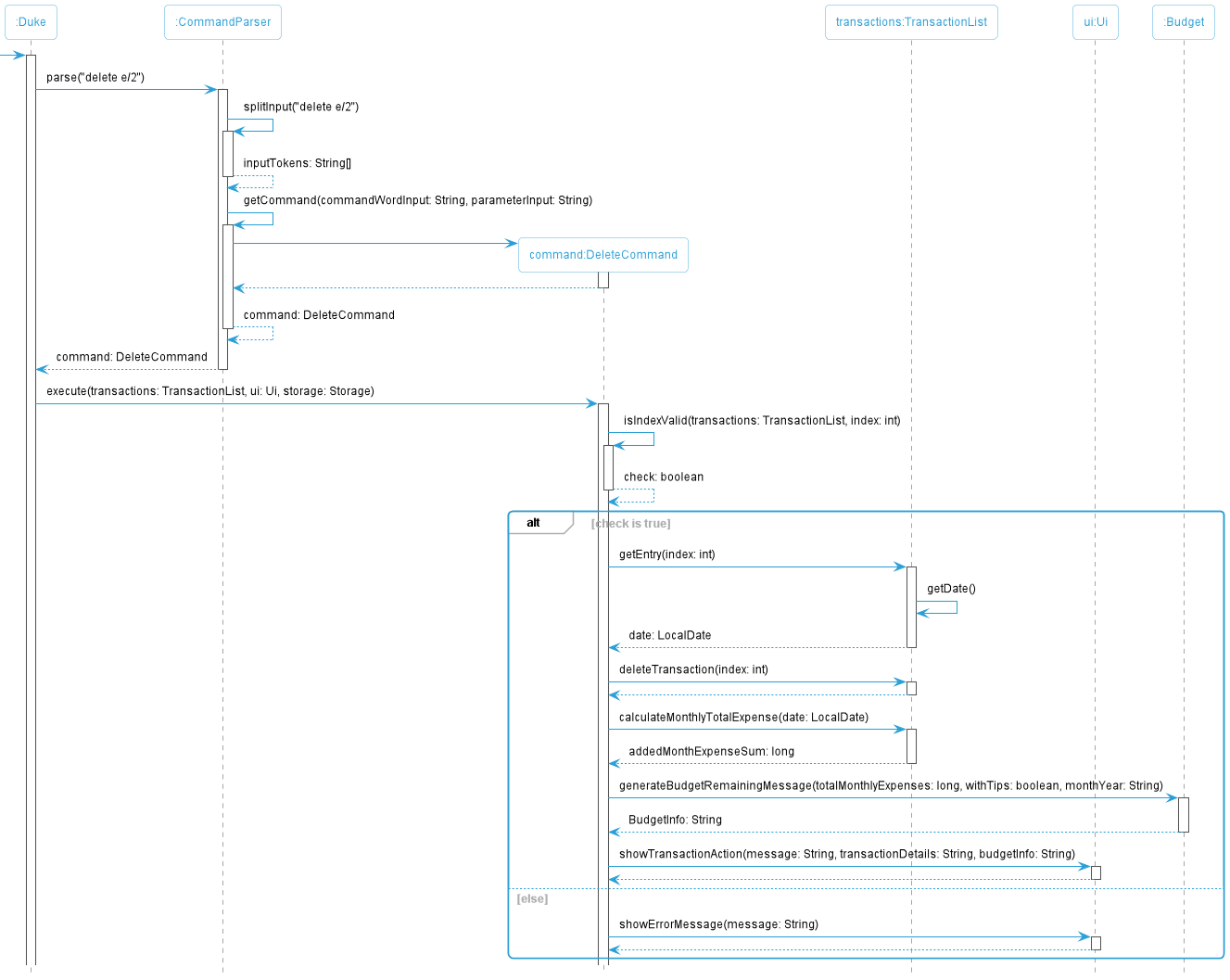
Figure 19: Sequence Diagram for Delete Command
Written by: Brian Wong Yun Long
5.8. Purge Command
The PurgeCommand inherits properties from the abstract Command class. The inheritance of Command from PurgeCommand is
shown below.
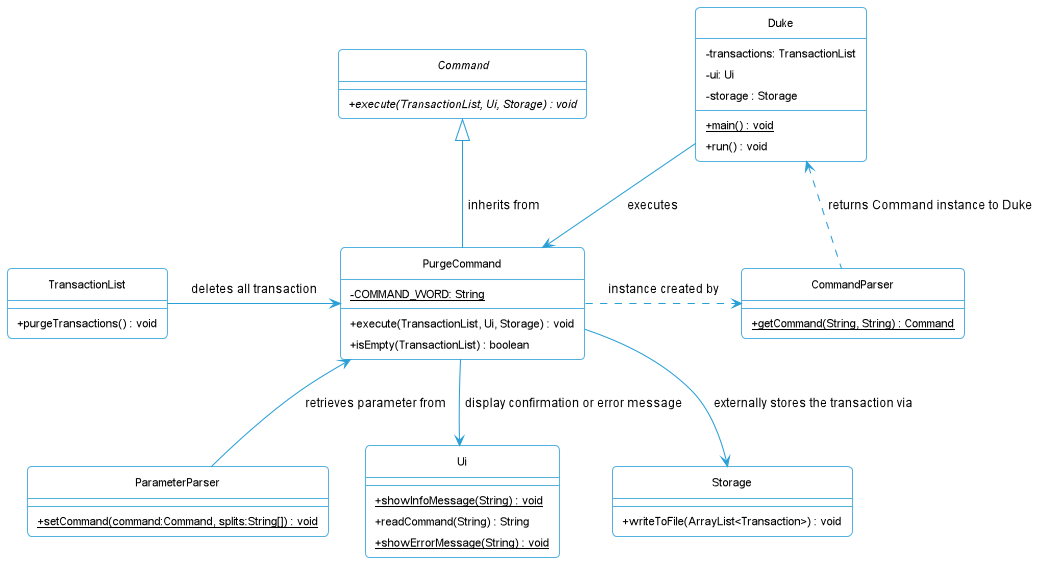
Figure 20: Class Diagram for Purge Command
The full command for purge is purge.
For example, if ‘purge’ is called, all transactions in Moolah Manager are removed.
This is how the command works:
-
The
main()method in Duke callsrun()in Duke. Theuireads the command viaui.readCommand()and parses it throughCommandParser.parse(). - Within
CommandParser.parse(), a few functions are called internally.spiltInput()is called which splits the command from the parameter.getCommand()is called which searches for the command.ParameterParser.parse()is called.
- Within
ParameterParser.parse(), a few functions are called internally as well.checkMandatoryTagsExist()is called where the parameters are checked for all required tags exist based on the command.checkUnsupportedTagsNotExist()is called to check if the parameter do not contain any unsupported tags based on the command.checkDuplicateTagsNotExist()is called to check if the parameter do not contain any duplicate tags.checkParameterNotEmpty()is called to check that the parameter inputted is not empty.- Once all these checks are successful,
setCommand()is called.
-
Within
setCommand(), there is no parameters required to be set forpurge. - The purge command is undergoing execution in
command.execute()which will call functions within the PurgeCommand Class.- The function calls
isEmpty()which returnstrueif the list of transactions is zero,falseotherwise. It is stored in the localcheckvariable. - The above function compares the size of the transactions list through the
transactions.size()which is executed in the TransactionList class and see if both are equal to zero. - The display will show an empty message if
isEmpty()returnstrueviaui.showInfoMessage(), which exits the command. - Otherwise, a warning is displayed through
ui.showInfoMessage()and reads in an input for the user to respond throughui.readCommand(). - If the input is
Y, the command goes ahead and executes thetransactions.purgeTransactions(). Any other input will abort the command and the display will show an aborted message throughui.showInfoMessage().
- The function calls
- The
transactions.purgeTransactions()function is executed in the TransactionList class.- The
transactions.clear()function is called which deletes every single entry in Moolah Manager
- The
- The display shows the successful purging via
ui.showInfoMessage()and writes it to file bystorage.writeToFile().
The sequence diagram below shows the interactions of a successful execution of the PurgeCommand.
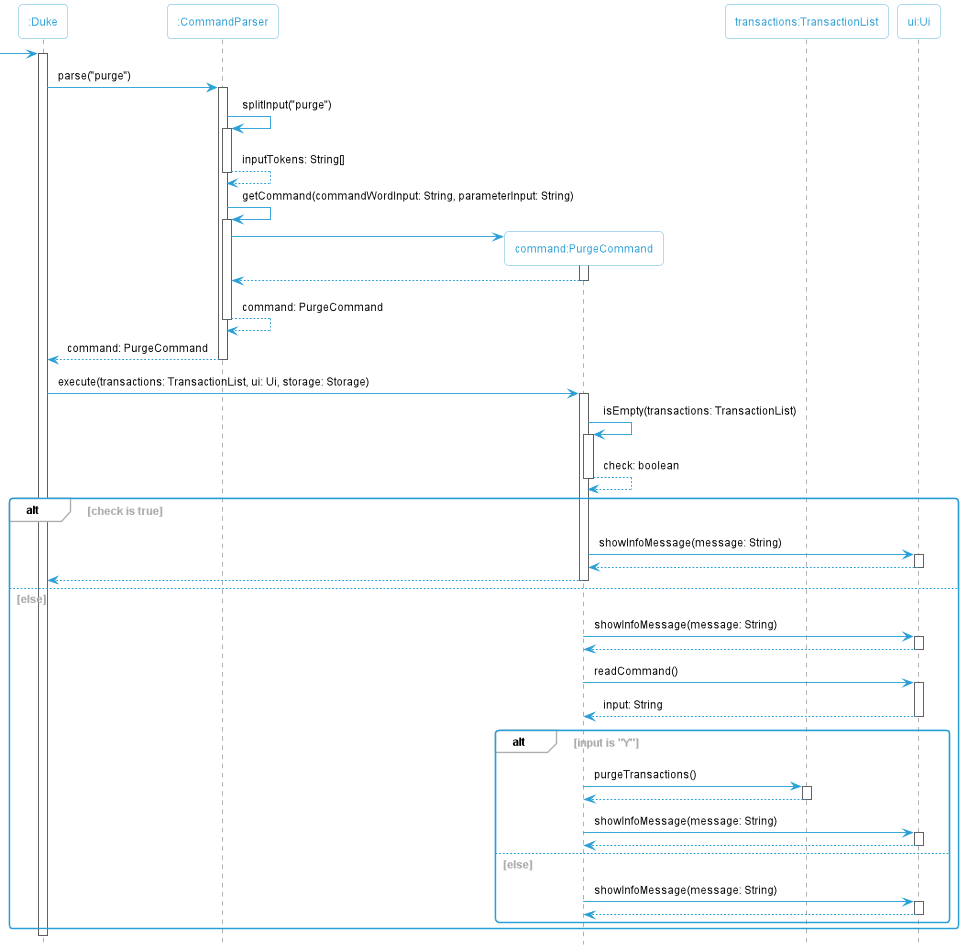
Figure 21: Sequence Diagram for Purge Command
Written by: Brian Wong Yun Long
6. Implementation for Budgeting and Financial Insights
6.1. Overview
Moolah Manager supports the viewing of summarised expenses in daily, weekly and monthly formats to show categorical savings or overall expenditure.
As such, we have developed streamlined methods to filter the transactions by time period prior to passing them into the Stats command class for generating insights.
Beyond gathering of these insights, users can also allocate a monthly budget to help them manage their spending.
Written by: Chua Han Yong Darren
6.2. Proposed Implementation
The List and Stats command classes inherit their methods from the ListAndStats command class when setting global tags (year, month, number, period) and performing checks on their usage.
Likewise, retrieval of filtered transactions by time periods is also done in ListAndStats command class, streamlining the workflow for both the List and Stats commands.
This way, the Stats command class focuses on generating the different types of statistics rather than having to deal with an overhead of needing to consolidate the transaction entries of different time periods.
Figure 22 below is a class diagram that illustrates the inheritance for the Stats command class.
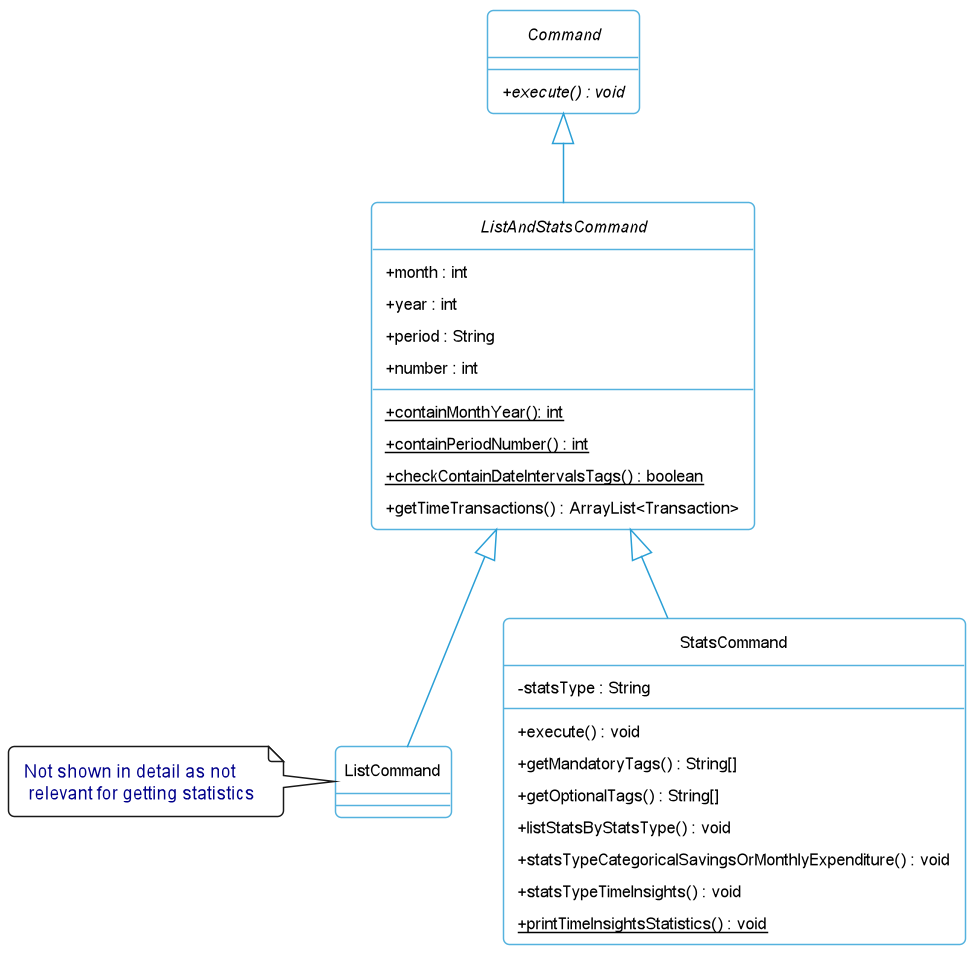
Figure 22: Class Diagram for Stats Command
Elaborating on the checks for date interval tags and retrieval of the filtered transactions by time periods, the two significant methods are checkContainDateIntervalsTags() and getTimeTransactions().
The table below depicts the possible scenarios that may arise upon validation of these tags in the ListAndStats command class. These tags are used with list or stats s/time_insights commands.
| Date Interval Tags | Purpose | Outcome |
|---|---|---|
y/<YYYY> |
View financial insights for a particular year. | TransactionList#getTransactionsByYear() will be called for list of transactions filtered by year. |
y/<YYYY> m/<N> |
View financial insights for a particular month. | TransactionList#getTransactionsByMonth() will be called for a list of transactions filtered by month. |
p/days n/<N> |
View financial insights for the last N days. | TransactionList#getTransactionsByWeekRange() will be called for a list of transactions filtered by last N days (backdated from today). |
p/months n/<N> |
View financial insights for the last N months. | TransactionList#getTransactionsByMonthRange() will be called for a list of transactions filtered by last N months (backdated from first day of current month). |
p/weeks n/<N> |
View financial insights for the last N weeks. | TransactionList#getTransactionsByDayRange() will be called for a list of transactions filtered by last N weeks (backdated from Monday of current week). |
If no date interval tags are used together with s/time_insights or they are combined incorrectly (i.e. their usage does not appear in the table above), exceptions will be thrown. This prevents an incorrect transactions list from being further passed to other
methods within the Stats command class.
The budget is a static variable stored inside the Budget class. The budget variable is checked during the following
phase of the applications, with relevant reminder, tips and advices displayed:
| Application Phase | Display | Purpose |
|---|---|---|
| Program starts | Budget Reminder | To remind user on the budget remained for the current month. |
| Adding, editing or deleting of transactions | Budget Tip | To alert user on the effect of the new transaction on the month’s budget. |
| Monthly expenditure or insight | Spending habit, budget advice | To advise user on the proportion of user’s spending and budget. |
The spending habit and budget advices displayed on monthly expenditure or specific month insight are generated dynamically based on the proportion of user’s spending. This allows the application to provide suitable advices to the user.
Written by: Chua Han Yong Darren (List and Stats), Chia Thin Hong (Budget)
6.3. Stats Command
The StatsCommand class provides the functionalities for users to get an overview of their financial insights based on the statistics for the transactions. These
statistics are generated using the list of transactions that is stored in Moolah Manager application.
The following are the available commands:
stats s/categorical_savings- Displays the total savings of all transactions in each category.stats s/monthly_expenditure- Displays the total income, expense and savings of all transactions in each month.stats s/time_insights y/YEAR [m/MONTH]- Displays the categorical savings and monthly expenditure for a specific month or year.stats s/time_insights p/PERIOD n/NUMBER- Displays the categorical savings and monthly expenditure for the last N days, weeks or months.
The sequence diagram below shows the interactions of a successful execution of the StatsCommand, using an example of stats s/categorical_savings.
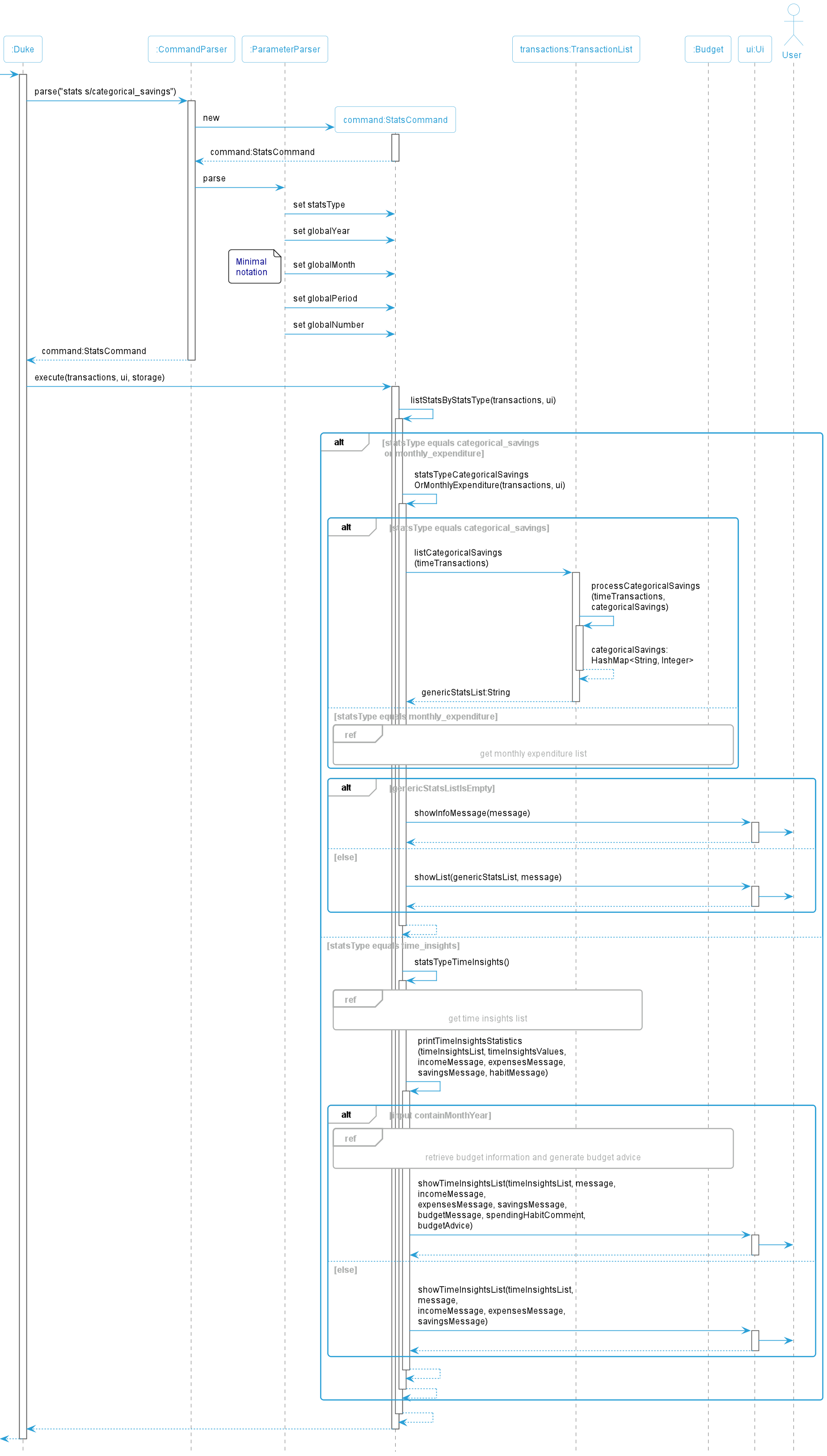
Figure 23: Sequence Diagram for Stats Command
Referring to Figure 23, the following is a summarized steps of the interactions that StatsCommand performs when a user is requesting for the categorical
savings. Higher level details in CommandParser and ParameterParser have been omitted for simplicity. Additionally, segments of interaction for getting monthly
expenditure and time insights have been put into isolated sequence diagrams to break down the information.
- The user executes
stats s/categorical_savingscommand with an intent to view his or her categorical savings. - The
CommandParser#parse()method will initialize theCommandobject withStatsCommand. The initialization of thestatsTypevariable is performed in theParameterParserclass. - In the
ParameterParserclass, various checks are performed to ensure that all the tags and parameters in the input have been filled up in correspondence to their respective requirements. - Once all checks have passed,
StatsCommandclass willexecute()whereby it will verify the related tags for date intervals (year, month, period, number) first to ensure that they are not entered together with thes/categorical_savingstag. This verification is performed inListAndStatscommand class and is not shown in the sequence diagram for the brevity of this section. - Moving on,
listStatsByStatsType()will be called and when it confirms that the requested statistics type iscategorical_savings, it will callstatsTypeCategoricalSavingsOrMonthlyExpenditure()method to produce the list of categorical savings. Here,TransactionList#listCategoricalSavings()will use a hashmap to store different categories from theTransactionListand append the amount for each category accordingly until all transactions are exhausted. - A formatted string of output collected from looping through the hashmap will be returned to the
StatsCommandclass. - If
StatsCommandclass checks thatgenericStatsListstring is empty, it will callUi#showInfoMessage(). Otherwise,Ui#showList()method is called to display the categorical savings.
Amongst the omitted frames in Figure 23, below two are the sequence diagrams for getting monthly expenditure and time insights.
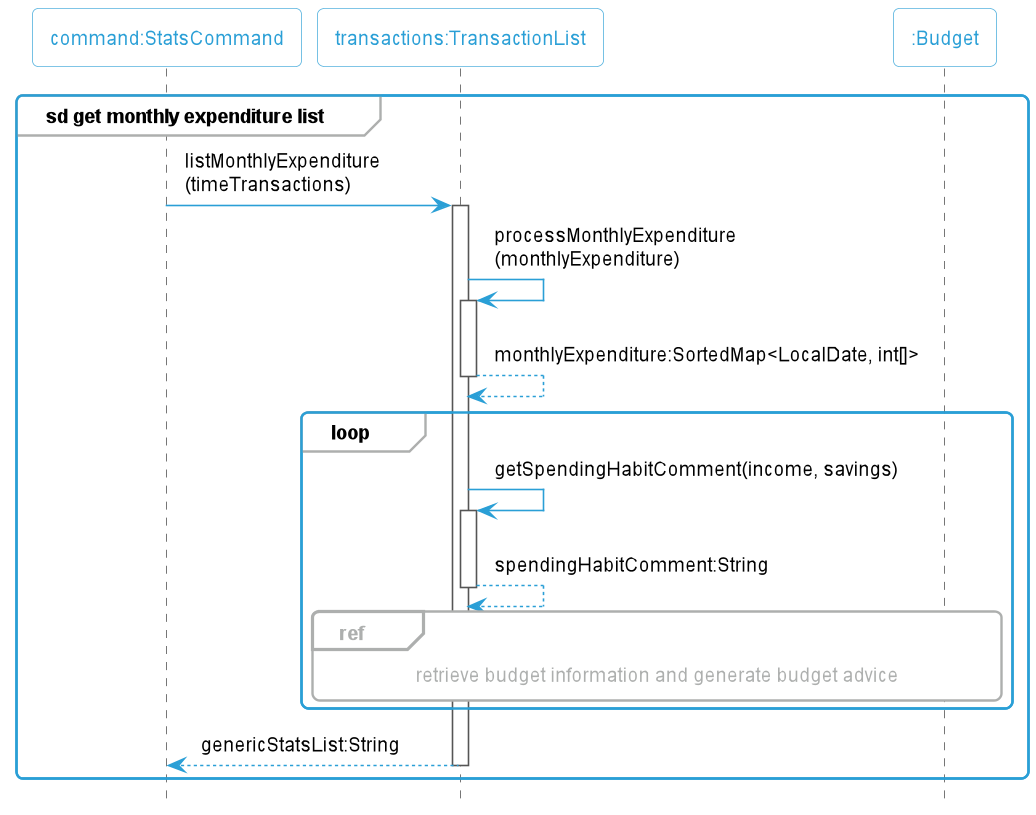
Figure 24: Sequence Diagram for Stats Command (Getting Monthly Expenditure List)
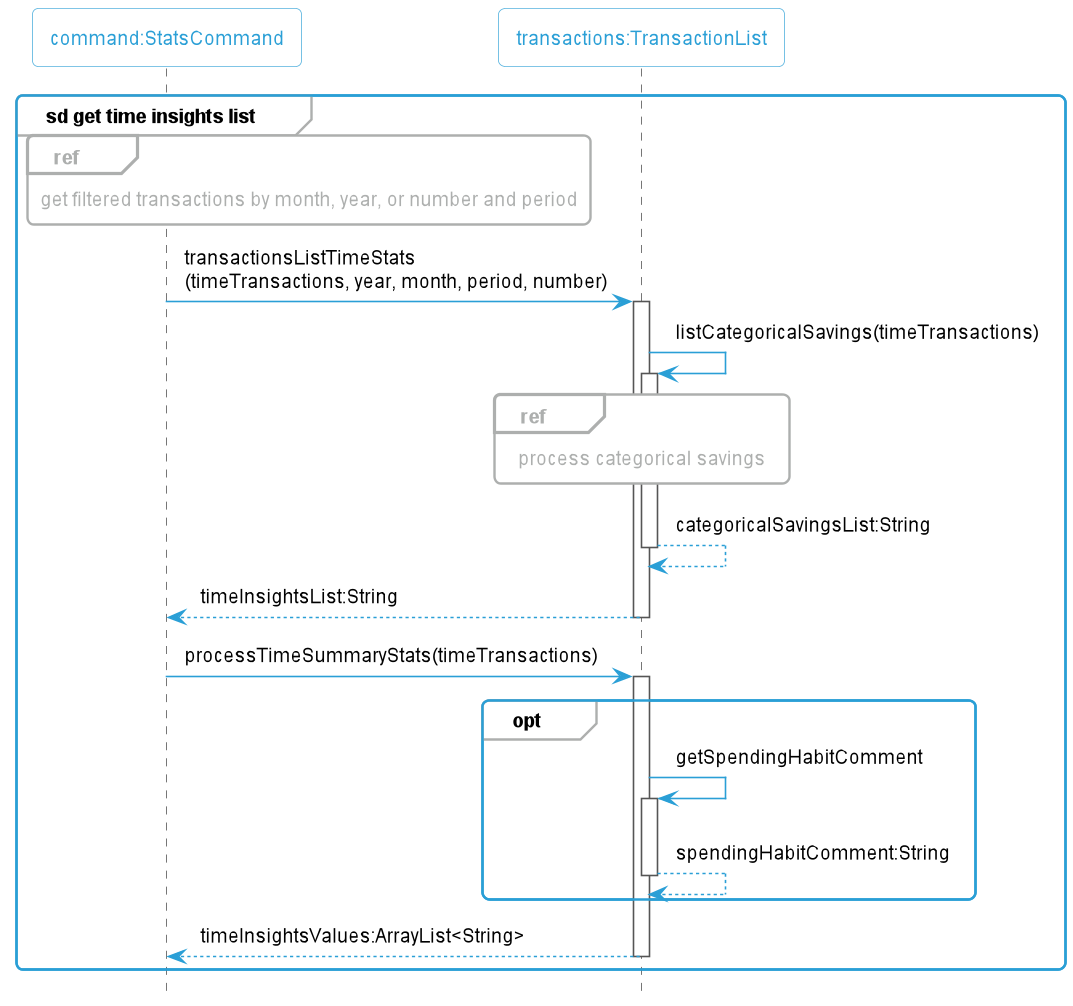
Figure 25: Sequence Diagram for Stats Command (Getting Time Insights List)
Written by: Chua Han Yong Darren
6.4. Budget Command
The budget command allows user to set a new monthly budget. The range of accepted budget value is stored in the
common/Constants.java file, whereby the content of the file is as such:
public static int MAX_TRANSACTIONS_COUNT = 1000000;
public static int MIN_AMOUNT_VALUE = 1;
public static int MAX_AMOUNT_VALUE = 10000000;
public static int MIN_BUDGET_VALUE = 1;
public static long MAX_BUDGET_VALUE = Long.valueOf(MAX_TRANSACTIONS_COUNT) * Long.valueOf(MAX_AMOUNT_VALUE);
Under the default setting, the acceptable range of the monthly budget, is 0 < budget <= 10000000000000, which is 10^13,
and it ensures that no integer overflow will occur as the long data type is used.
To set a new budget, user can use the command budget b/AMOUNT where the AMOUNT tag is any whole number within the
valid range above.
The interaction of the components on setting a budget can be seen in the sequence diagram under How the Architecture Components Interact with Each Other.
Written by: Chia Thin Hong
7. Implementation for Miscellaneous Operations
7.1. Help Command
The help command displays the help message to the users to guide them on the usage and provide descriptions for each available command and parameter.
The help command can be run as help [q/COMMAND] or help o/detailed [q/COMMAND], where the latter will display a more detailed version of
help messages to the users. If the user provide the optional q/COMMAND tag, the help command will only return the
help message of the chosen command.
The structure of the application focusing on the help command is illustrated in the class diagram below:
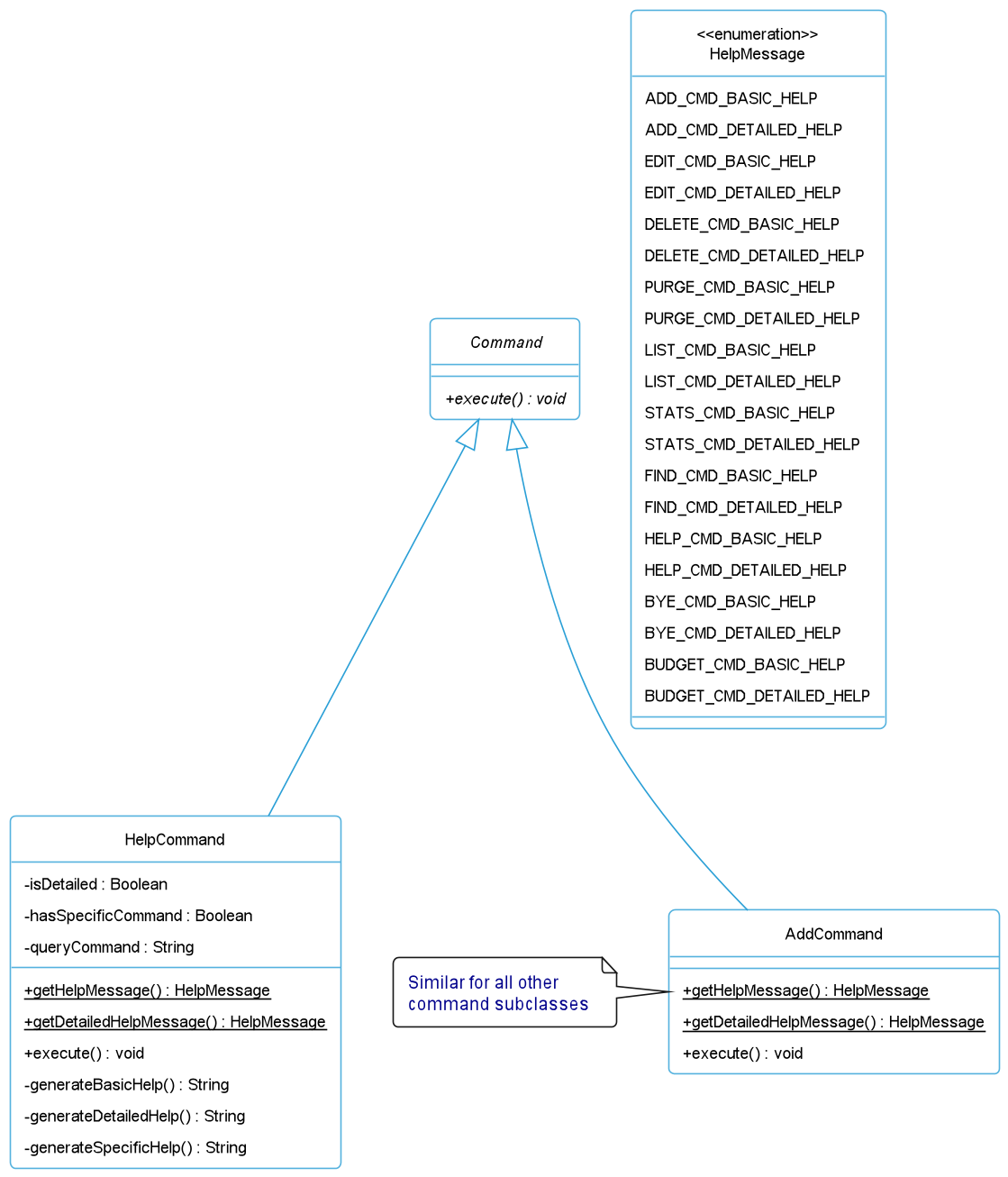
Figure 26: Class Diagram for Help Command
For each command subclass, they will implement the getHelpMessage() and getDetailedHelpMessage() methods. These methods will contain their corresponding HelpMessage Enum that stores the help messages as strings inside the enum.
In the help command, when execute() is called, it will call either generateBasicHelp() or generateDetailedHelp() method
based on the help option chosen by the user.
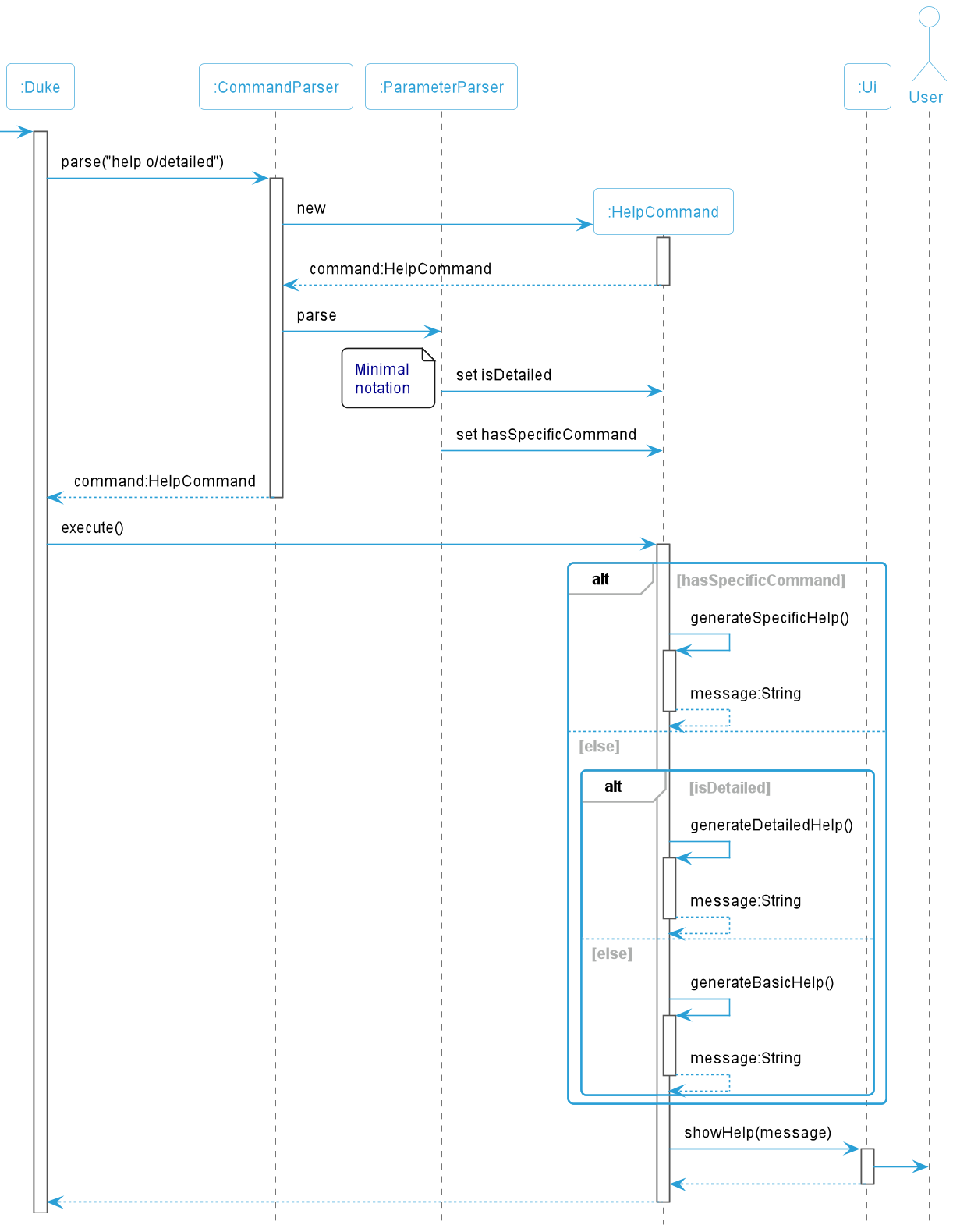
Figure 27: Sequence Diagram for Help Command
Written by: Chia Thin Hong
7.2. Bye Command
The ByeCommand inherits properties from the abstract Command' class. The inheritance of Command from ByeCommand is
shown below.
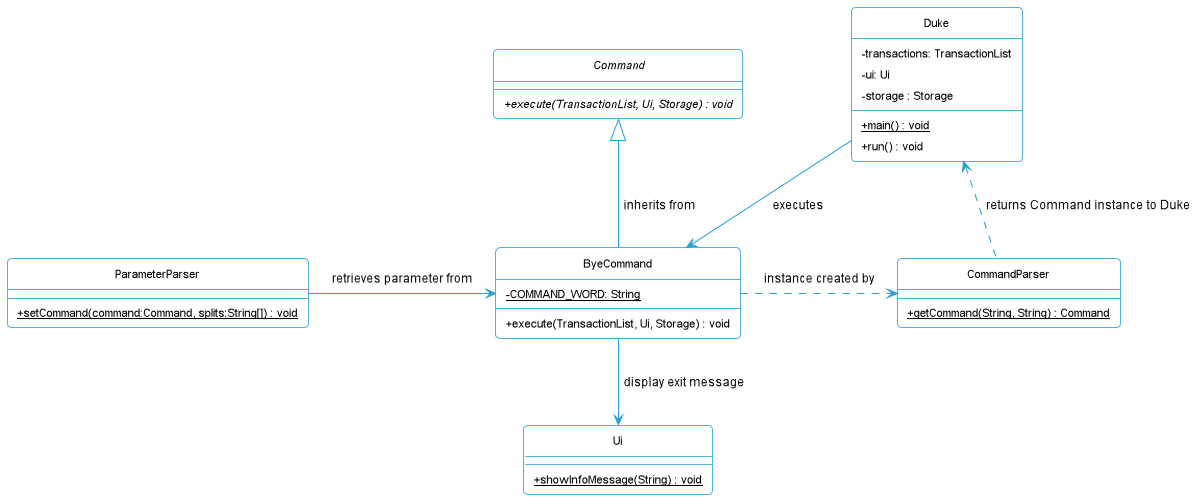
Figure 28: Class Diagram for Bye Command
The full command for bye is bye.
For example, if ‘bye’ is called, the program prints the exit message and terminates the program.
This is how the command works:
-
The
main()method in Duke callsrun()in Duke. Theuireads the command viaui.readCommand()and parses it throughCommandParser.parse(). - Within
CommandParser.parse(), a few functions are called internally.spiltInput()is called which splits the command from the parameter.getCommand()is called which searches for the command.ParameterParser.parse()is called.
- Within
ParameterParser.parse(), a few functions are called internally as well.checkMandatoryTagsExist()is called where the parameters are checked for all required tags exist based on the command.checkUnsupportedTagsNotExist()is called to check if the parameter do not contain any unsupported tags based on the command.checkDuplicateTagsNotExist()is called to check if the parameter do not contain any duplicate tags.checkParameterNotEmpty()is called to check that the parameter inputted is not empty.- Once all these checks are successful,
setCommand()is called.
-
Within
setCommand(), there is no parameters required to be set forbye. - The bye command is undergoing execution in
command.execute()which will call functions within the ByeCommand Class.- It calls
ui.showInfoMessage()which prints the exit message. isExit()is set as true.
- It calls
- Within
run()in Duke, the loop is exited and the program ends.
The sequence diagram below shows the interactions of a successful execution of the ByeCommand.
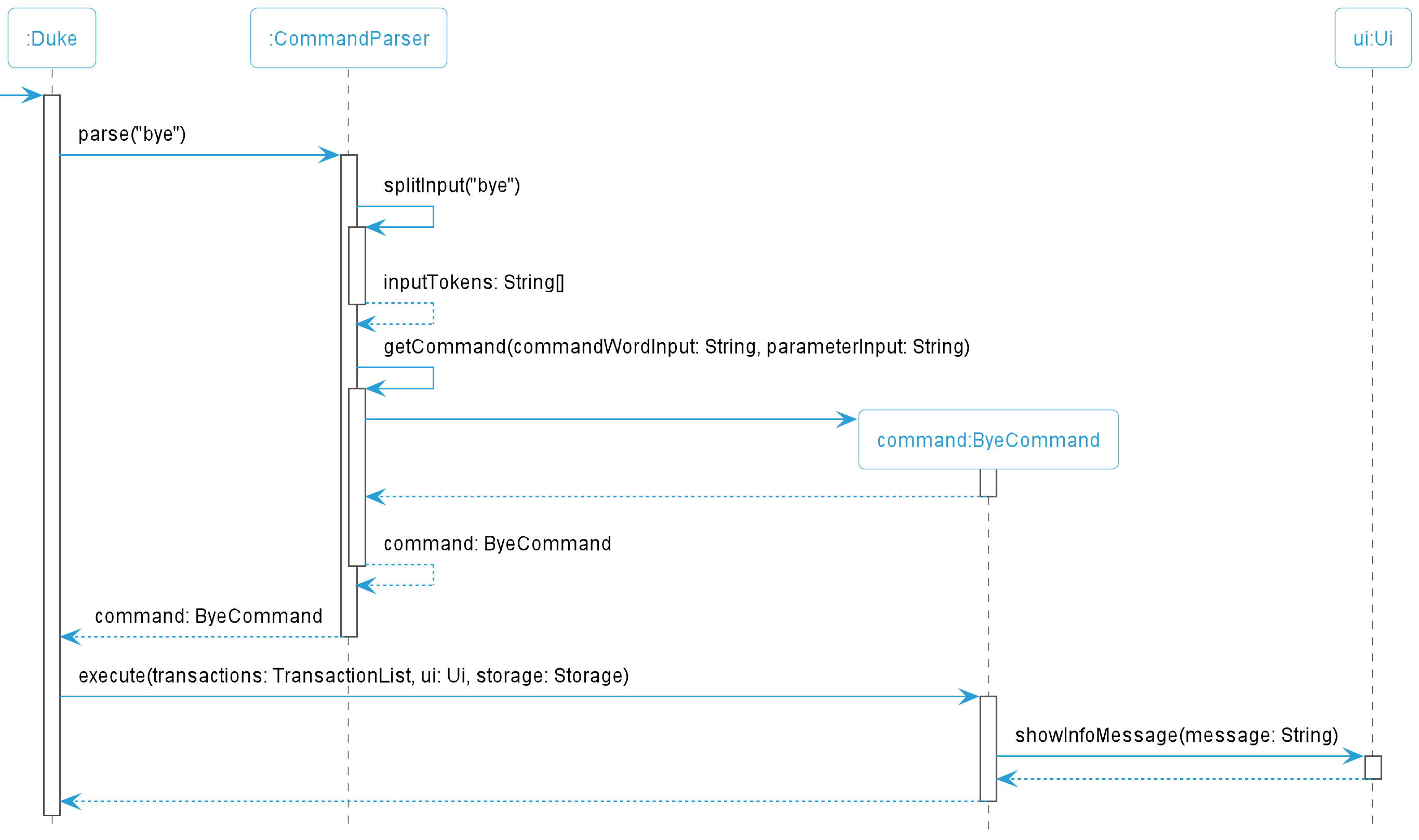
Figure 29: Sequence Diagram for Bye Command
Written by: Brian Wong Yun Long
7.3. Storage Operations
The Storage class is a standalone class that contains methods used for the storage of Transaction entries and the Budget value.
The class is first called by Duke during the initialising of the TransactionList. In this process, the existence of duke.txt will be verified.
- If the file does not exist, an empty
Duke.txtfile would be created for the program to use. - If the file exists, it’s values would be parsed to verify if they have been corrupted. If corrupted, the storage of values would halt and error messages would be shown to prompt user to correct file issues.
Else, the values would update the program’s
Budgetand the entries inTransactionListwithout any issues.
Reading From Duke.txt
This specific operation is done during the initializing of the program. The Budget value and TransactionList entries would be parsed before their values are added into the program.
Storage#initializeFile is called by Duke.
Storage#checkIfFileExist is used to check if Duke.txt exists, and creates a new Duke.txt file if it does not exist.
Storage#storeFileValuesLocally uses sub-methods and methods from external classes to parse each line entry within Duke.txt and store the values in the program.
Writing To Duke.txt
This operation is done whenever the TransactionList entries or Budget value is changed via any of the Command classes;
(e.g. Add, Delete, Purge , Edit and Budget commands).
The method Storage#writeToFile is used to update changes in Budget or TransactionList.
Written by: Yong Chin Han
7.4. Logging Operations
Our team used java.util.logging package for the purposes of logging. We instantiated various objects for different classes such as parserLogger and addLogger to set the log messages.
Logging Levels:
SEVERE: Critical problem detected which may cause the termination of the applicationERROR: An unexpected control flow capturedWARNING: An exception has been caught by the appINFO: Information details what the app has done
Written by: Paul Low
Appendix A: Product scope
A.1. Target user profile
Moolah Manager is developed for IT professionals who prefer using Command Line Interface (CLI) applications to quickly track and update their daily monetary transactions. They ought to be reasonably comfortable in typing over mouse interactions and can type fast.
A.2. Value proposition
Financial bookkeeping using a mobile application is often a hassle due to repetitive clicks. Moolah Manager boasts a time-saving CLI that encourages individuals to take ownership of tracking and reviewing their daily or monthly transactions in an efficient and effective way. Moreover, it facilitates budget planning to prevent overspending.
Appendix B: User Stories
| Version | As a … | I want to … | So that I can … |
|---|---|---|---|
| v1.0 | fast-typing user | type my own actions instead of having to click through different GUI pages | have a more convenient way of managing my spending |
| v1.0 | new user | have similar features be grouped in the same family | navigate the application easily |
| v1.0 | new user | list usable commands | better utilize the application when I unfamiliar with the commands |
| v1.0 | user | add my income and daily expense into the application | keep a record of my transaction history |
| v1.0 | user | add my salary into the application | gather insights from a trend of my income |
| v1.0 | user | add a category to each type of spending | have an organised view of my financial statements |
| v1.0 | user | view my daily expenditure | plan how I want to spend my remaining income throughout the rest of the week |
| v1.0 | user | know which category of expenses I spend the most on | better allocate my income for essential needs |
| v1.0 | careless user | delete my spending or expenses in the application | remove inputs that are false or outdated |
| v1.0 | careless user | receive an error message when entering a wrong command | be aware that I need to rectify my incorrect input |
| v1.0 | forgetful user | find a specific transaction | recall how much I spent or earned for a particular situation |
| v1.0 | busy user | purge all my transactions at one go | refrain from deleting my transactions one by one when needed |
| v2.0 | new user | be guided at the initial stage of using the application | make good use of the features |
| v2.0 | frequent user | input a file with all my expenses for the application to retrieve data | be more efficient and do not need to manually type my financial records into the command prompt |
| v2.0 | frequent user | save my input history into a file | have the inputs automatically read again in future without having to re-enter similar expenses each time I use the application |
| v2.0 | user | gather a summary of my expenditure over a time period (i.e., daily, weekly, monthly) | better understand my spending habits |
| v2.0 | user | know the amount of savings tabulated from income and expenditure after each month | review my spending and plan my budget for the next month |
| v2.0 | user | gather individual insights of different time periods after adding my transactions | analyze and reflect on the way I am managing my income and expenses |
| v2.0 | user | view recommended money-managing tips from the application | better improve my money-managing habits |
| v2.0 | user | set up and update my budget | limit my spending against a budget |
| v2.0 | user | archive my financial transactions from the previous years | focus on transactions that matter only for the current year |
| v2.0 | careless user | modify my spending or expenses in the application | rectify any false input |
| v2.0 | forgetful user | receive reminders on how I should spend my allowance | be consciously aware of my budget constraints |
| v2.1 | user | view my remaining budget for each month | better manage my expenses to keep them within my monthly budget |
| v2.1 | user | gather a summary of my expenditure over the last N days | narrow down my scope of listing my transactions to specific situations, e.g. my transactions over the past 1 week |
| v2.1 | user | display my transactions and statistics in chronological order of date | find my most recent transactions quickly |
| v2.1 | lazy user | list the help message for a specific command | choose not to scroll up and down to find the command I wish to refer to |
Appendix C: Non-Functional Requirements
- Should work on common operating systems including Windows, macOSX and Linux as long as it has Java 11 or above installed.
- A user with above average typing speed for regular English text (i.e. not code, not system admin commands) should be able to accomplish most of the tasks faster using commands than using the mouse.
- Does not require an active connection to the Internet to use the application.
- Should respond to commands within 3 seconds with no noticeable sluggishness in performance for typical usage.
Appendix D: Glossary
- Transaction: An instance when someone makes or receives a payment including deposits, withdrawals, and exchanges
- Budget: An estimate of expense for every month
- Income: Payment received from others
- Expense: Payment made to others
- Savings: Portion of income that is not spent on current expenditure
Appendix E: Instructions for Manual Testing
E.1. Launch and Shutdown
- Initial Launch
- Download the latest duke.jar and copy it into a separate directory.
- Ensure that Java 11 has been installed and configured on your operating system.
- Launch a command prompt or terminal and run the command
java -jar duke.jar. - Expected Outcomes:
- Moolah Manager will display a greeting message and a remaining budget for the current month.
- A data file,
duke.txtmay be loaded if it exists in./data/directory.
- Shutdown
- Type
byeto quit the application. - Expected Outcome:
- Moolah Manager will terminate and display a goodbye message.
- Type
E.2. Storage
- Loading Data
- Launch the application and change the state of the application, such as adding a new transaction. Close the window.
- Re-launch the application.
- Expected Outcome:
- Moolah Manager will load the
duke.txtdata file and the state of the application is the same as when it was closed.
- Moolah Manager will load the
- Missing Data File
- As per the instructions from loading data, check there is a
duke.txtdata file in./data/directory. - In
./data/directory, deleteduke.txt. - Re-launch the application.
- Expected Outcome:
- No data file will be loaded into the application, and user may not see the former state of the application.
- As per the instructions from loading data, check there is a
- Corrupted Data File
- As per the instructions from loading data, check there is a
duke.txtdata file in./data/directory. - In
./data/directory, openduke.txtand try corrupting the records by e.g., removing the first pipe symbol from the first row. Save the changes to the file. - Re-launch the application.
- Expected Outcomes:
- The data file will only be partially loaded into the application, and user will be prompted to STOP the application and fix the error before reloading.
- If users decide to continue using the application, the data would be overwritten.
- As per the instructions from loading data, check there is a